I recently configured a platform for MacOS in Intune with a bunch of standard policies. One of them was a nice login window banner setting in a Device features policy. On Mac we have this nice feature that makes it possible display a custom banner on the login screen (for example Company name and a phone number if the device is lost). See image below for an example:
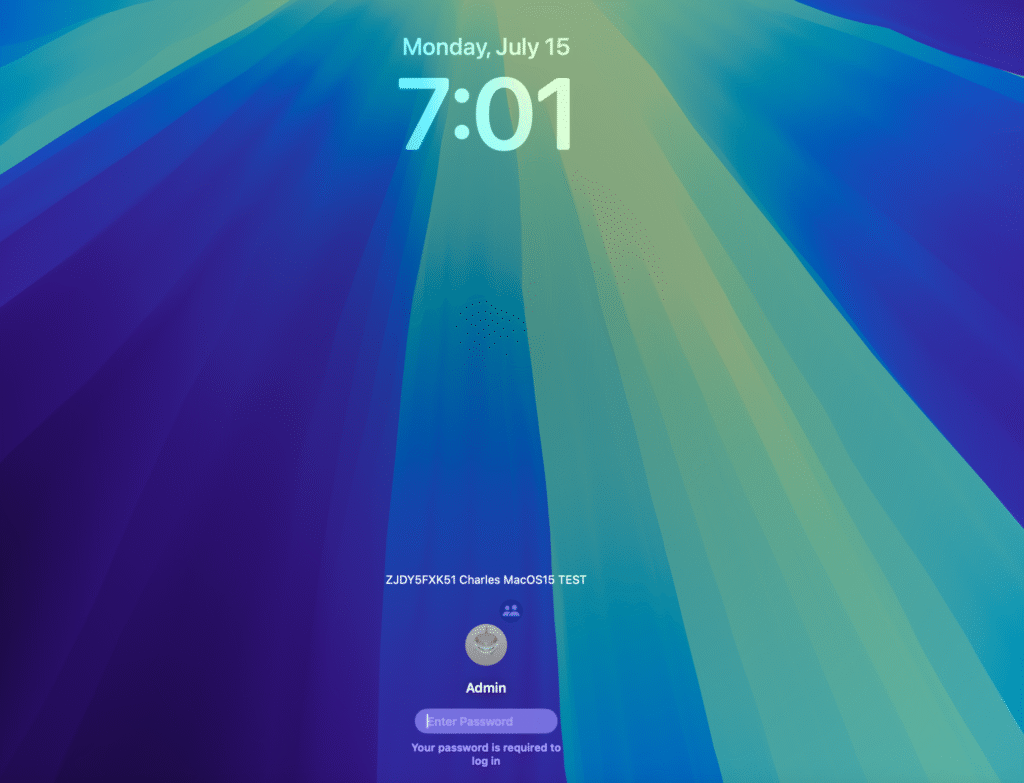
Image source: https://support.addigy.com/hc/en-us/articles/4403549607827-How-To-Configure-A-Login-Banner-Using-Addigy-MDM
- Set up custom message for MacOS with a Device features policy
- Why I decided to write this post
- Set up custom message for Windows 11 with settings catalog policy
- Disclaimer from a member of the community
- Final result
Set up custom message for MacOS with a Device features policy
The setting that is shown in the screenshot on the Mac above is configured in a Device Features policy for Mac in Intune.
You create this by going to Intune and going to Devices > macOS > Configuration > Create > Templates > Device features.
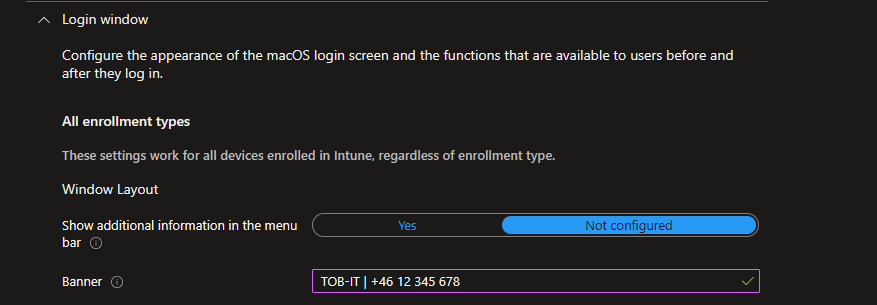
When you get to the Configuration settings page you’ll find the Banner message settings under Login window 👇
Why I decided to write this post
I tried searching around on blogs and asking Copilot and ChatGPT to find an equivalent setting for Windows and I didn’t find it right away, maybe because this setting is not exactly the same as one the Mac BUT it’s probably the closest we can get.
I wanted to write this post to make it more available for someone else looking for a solution like this.
Set up custom message for Windows 11 with settings catalog policy
- In Intune go to Devices > Configuration > New Policy > Windows 10 and later > Settings Catalog
- Give it a name that suits your needs.
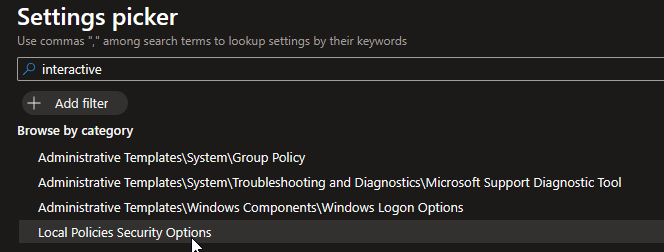
- Search for “interactive” in the Settings picker and choose
“Local Policies Security Options” 👇
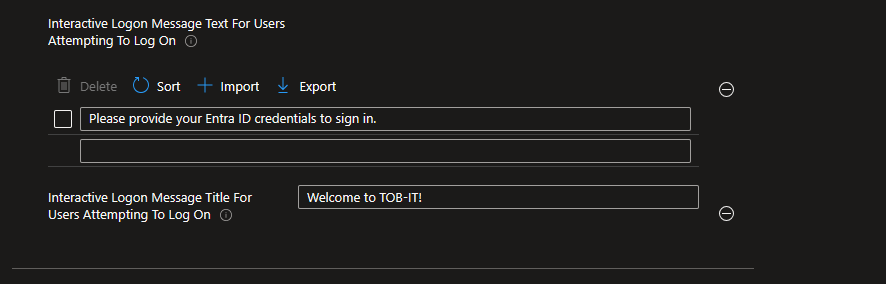
Scroll down and choose the following two 👇

Fill in a title and message that you want 👇
Disclaimer from a member of the community
Sven Visser from the wonderful LinkedIn community Modern Endpoint Management (SCCM | Intune | W365 | AVD | Security | macOS | iOS ) pointed this out regarding the setting for Windows which is important to consider when working with Autopilot:
“Nice blogpost, I do wanted to mention that the specific interactive logon policies for Windows can cause for issues with Autopilot in certain situations.
It is also mentioned here in Autopilot FAQ but curiously though only for GPO mentioned there as I have heard from colleagues that this also had effect when using the intune policies of it.
https://learn.microsoft.com/en-us/autopilot/troubleshooting-faq#:~:text=Options%0A%0APolicies%3A-,Interactive%20logon,-%3A%20Message%20title%20for“
Final result
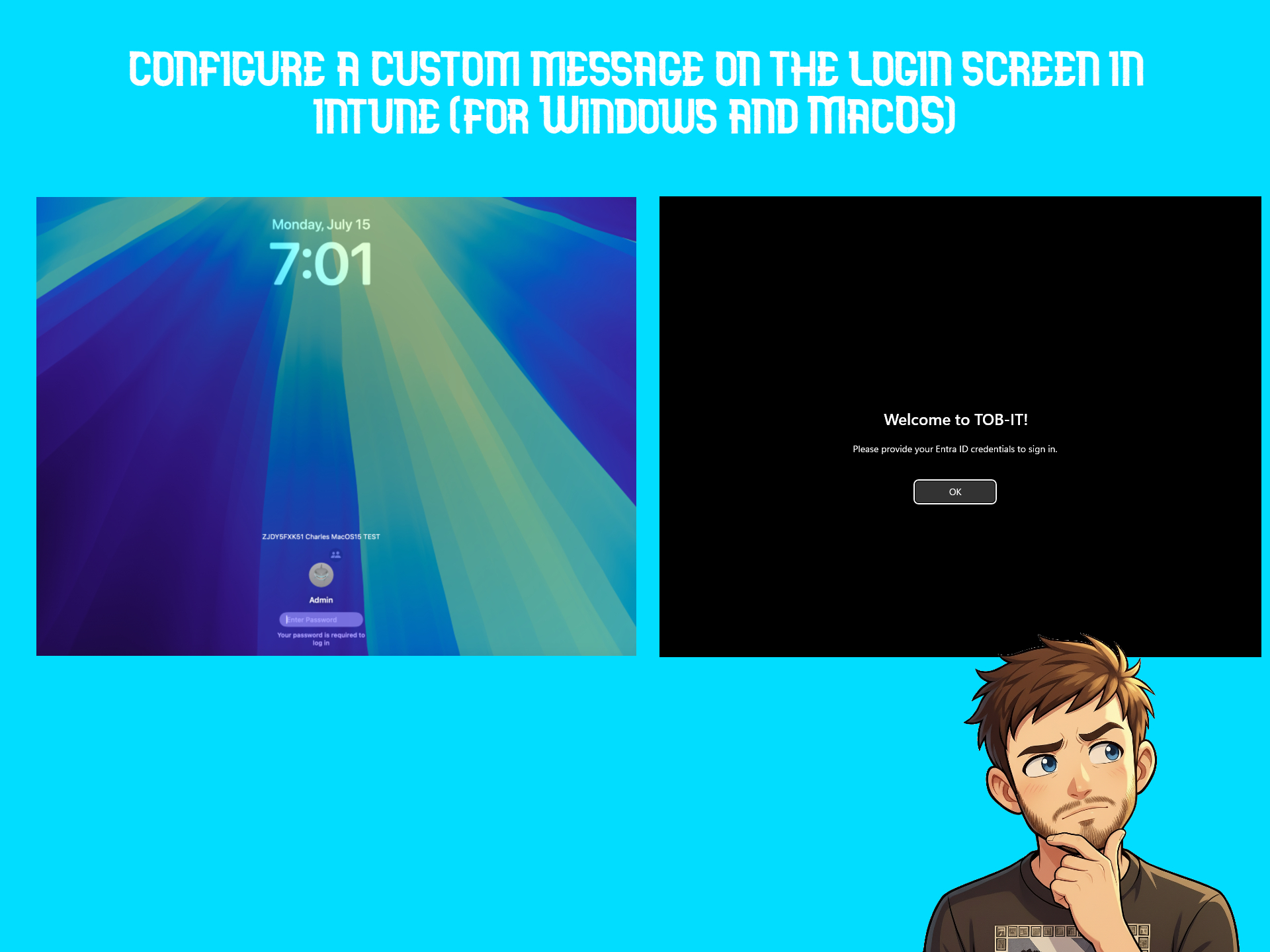
Each time when a user is signing in this is how the message shows:
A shorter post today but I still hope it helped you! Until next time 😁
Leave a Reply