In today’s post I will be walking you through how to deploy fonts in Intune using a Powershell script packaged as a Win32 app with the fonts you wish to deploy. This feature is not available natively in the Intune portal if you are on a P1 license so this is a really useful solution.
- Getting your fonts
- Looking at the script
- Creating the folder structure and Win32 package (+ detection rule)
- Uploading to Intune
- Final result
Getting your fonts
Download the fonts that you wish to deploy. As long as the file format is .otf or .ttf this solution will work. I can recommend the site DaFont for a good selection of fonts.
Looking at the script
To install a font there are two things that needs to be done:
- The font file has to be copied to C:\Windows\Fonts
- The font has to be referenced in the registry path HKEY_LOCAL_MACHINE\SOFTWARE\Microsoft\Windows NT\CurrentVersion\Fonts in the format of FONTNAME (TrueType) for .ttf files and FONTNAME (OpenType) for .otf files.
This script below looks through the folder called “fonts” that is packaged alongside your script and adds each font to the path specified above and also does the registry reference. So just take it as it is and save it as a .ps1 file. 👇
## INSTALL FONTS IN INTUNE ##
## BY TOBIAS ERIKSSON, TOB-IT.SE ##

# Variables
$fontFolder = Join-Path $PSScriptRoot 'fonts'
$fontRegKey = 'HKLM:\Software\Microsoft\Windows NT\CurrentVersion\Fonts'
$fontsDir   = "$env:WINDIR\Fonts"

# Create table for naming convention (*.ttf, *.otf)
$fonts = Get-ChildItem -Path $fontFolder -File |
    Where-Object { $_.Extension -in @('.ttf', '.otf') } |
    ForEach-Object {
        $type = if ($_.Extension -eq '.otf') { 'OpenType' } else { 'TrueType' }
        [pscustomobject]@{
            SourcePath   = $_.FullName
            FileName     = $_.Name
            BaseName     = $_.BaseName
            RegistryName = "$($_.BaseName) ($type)"
        }
    }

# Reference each font in the registry
foreach ($f in $fonts) {
    New-ItemProperty -Path $fontRegKey -Name $f.RegistryName -PropertyType String -Value $f.FileName -Force | Out-Null
}

# Install each font
foreach ($f in $fonts) {
    Copy-Item -Path $f.SourcePath -Destination (Join-Path $fontsDir $f.FileName) -Force
}Code language: PHP (php)
Creating the folder structure and Win32 package (+ detection rule)
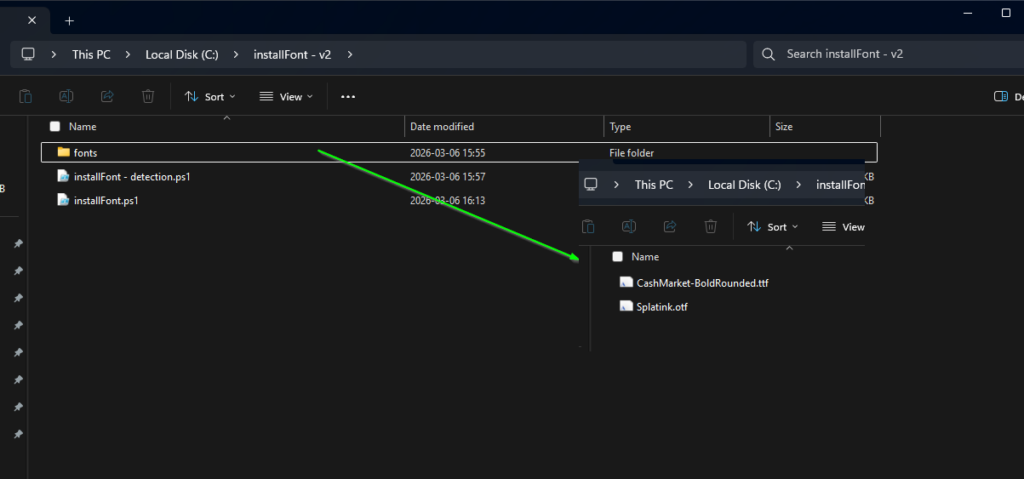
The folder structure needed for this to work needs to look like exactly like below (the detection script doesn’t have to be in there, I just left it there cause I’m lazy). As you can see I have my two font files located in the folder called “fonts”. You can place as many fonts as you like in your “fonts” folder. It’s important that you name the folder “Fonts” or “fonts” for this to work
Below is the detection script. Change the variable $fontFileName to the exact name of one of the fonts in your fonts-folder and save it as a .ps1-file:
# Specify the font file name to check
$fontFileName = "Splatink.otf"

# Check if the font file exists in the Fonts directory
$fontFilePath = Join-Path $env:SystemRoot "Fonts\$fontFileName"
if (Test-Path $fontFilePath) {
    Write-Output "Font file $fontFileName is installed."
    exit 0  # Font file found, exit with success code
} else {
    Write-Output "Font file $fontFileName is not installed."
    exit 1  # Font file not found, exit with error code
}
Code language: PHP (php)
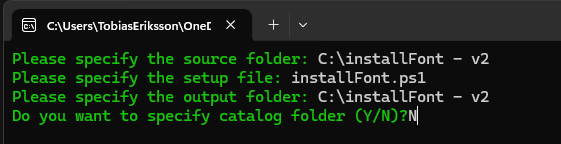
Download the Microsoft-Win32-Content-Prep-Tool from Microsofts GitHub and package it like below (with the folder path where all your files are):
Uploading to Intune
Go to Intune and create a new Win32 app. Below are the unique parameters you need for this to work:
- Install command:
cmd /c start /min "" powershell.exe -ExecutionPolicy bypass -Windowstyle hidden -File .\installFont.ps1Code language: JavaScript (javascript)- Install Context: SYSTEM
- Detection rule: Use a custom detection script > upload the detection script from above.
- When assigning the group select “Hide all toast notifications” in the End user notifications to make the installation completely silent for end users.
Final result
Below are screenshots from my test device. As you can see we have both fonts referenced in RegEdit:


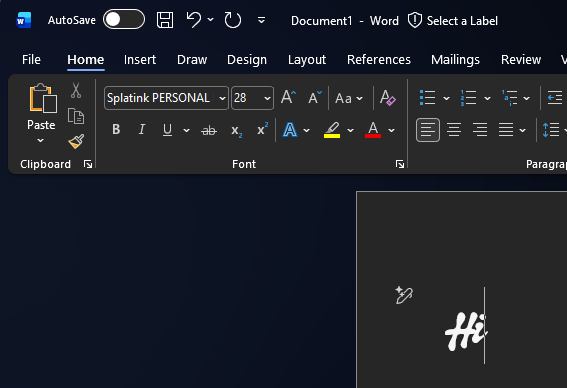
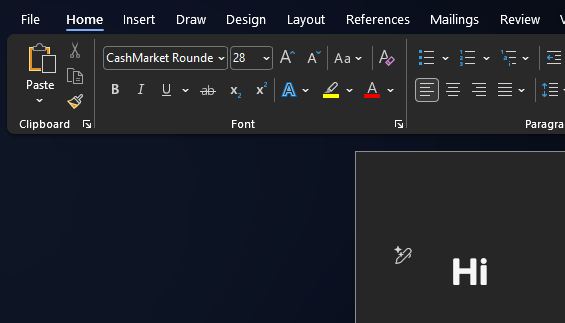
In Word we can see that both fonts are available to use as well:
That was all for today. If you enjoyed this please consider signing up for my newsletter to get notified when I make new posts. It’s free and it would mean a lot to me! Thanks for reading! Until next time!
Leave a Reply