When utilizing third-party migration tools like BitTitan MigrationWiz or Avepoint Fly to migrate mailboxes to or from Exchange Online it’s pretty common that the EWS (Exchange Web Services) APIs are throttled. If you get error messages like “HTTP 429 (“Too Many Requests”) or “Server too busy” it’s likely that the API is throttled. There is a simple, yet kind of hidden feature to increase this policy that I’ll show you today.
- When to increase the policy
- How to increase the throttling policy
- Run the migration again
When to increase the policy
The thing with this policy is the APIs have to be throttled in order to be able to increase it so you can’t increase for preventive purposes. So if you have a bunch of mailboxes that you wish to migrate you have to start the migration and then head over to the Admin Center in Microsoft 365.
How to increase the throttling policy
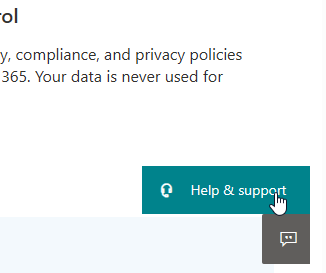
After you sign in on https://admin.cloud.microsoft click the “Help & support” button at the bottom right corner. If you don’t see that button you can also go to Support > Help & support in the admin center.
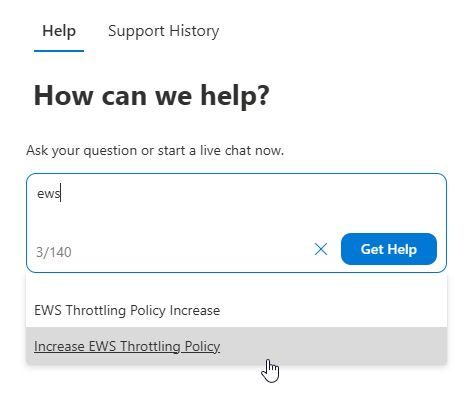
Search for “ews” and select “Increase EWS Throttling Policy”
Hit “Run Tests”
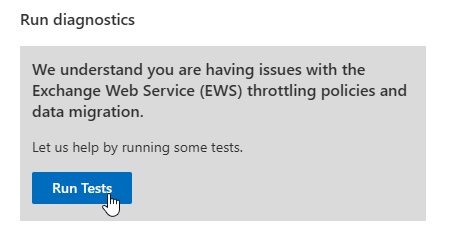
Wait for the diagnostics to finish
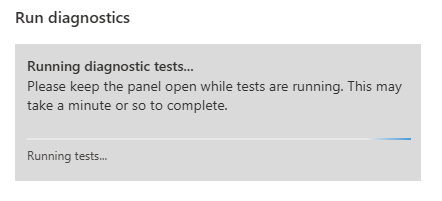
DISCLAIMER; If you are met with a message that the policy is not throttled while you are currently running a migration job and feel like it’s slow you can always run it again. It might be that it’s just about to “hit the roof” and you can increase it by running the test again.
If the EWS is throttled you can choose to increase the policy for 30, 60 or 90 days.
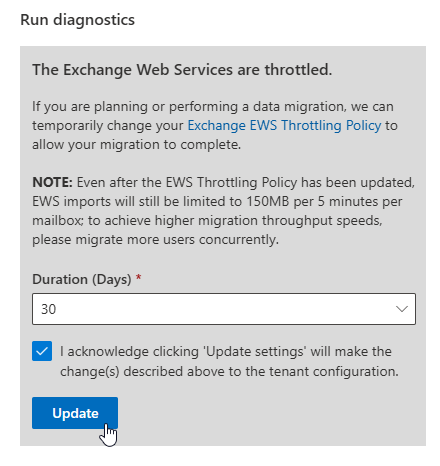
Press update and after that you are done!
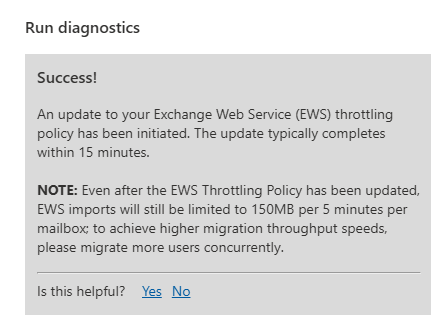
Run the migration again
If the migration is still throttling after this increase you might have to do the migration in batches if you are migrating big mailboxes. However, you should notice a much better flow when migrating now! That’s all for today. Until next time!
Leave a Reply