
If you are like me and work with a bunch of customers in different tenants all day you probably utilize InPrivate/Incognito mode a lot to sign into different customers environments to avoid caching their GA credentials in your browser.
When I started working in Microsoft 365 and Intune I would have 3 or 4 browsers installed just to be able to have different InPrivate/incognito sessions to manage multiple customers at once.
My colleague showed me a really neat way to run multiple isolated InPrivate sessions in Microsoft Edge using profiles and let me tell you, it’s been a game changer. Follow along and I’ll show you how to set it up.
- Creating the profile in Edge and setting it to InPrivate only
- Repeat this step as many times as you like
Creating the profile in Edge and setting it to InPrivate only
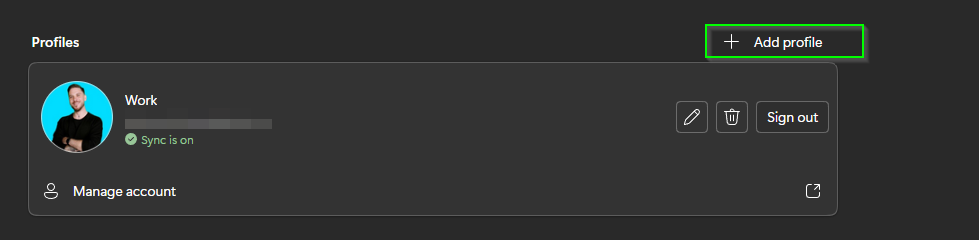
Open Microsoft Edge and go to edge://settings/profiles and hit Add Profile
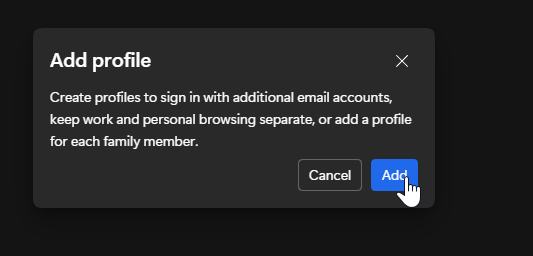
Hit Add again
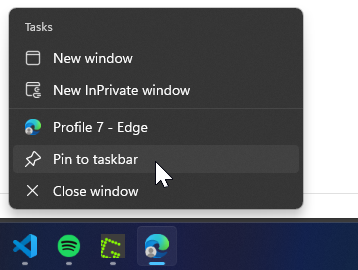
After that you’ll notice a new Edge window will open and you’ll see a new Edge icon in your taskbar with a little grey user icon on top of it.
Right click that icon and hit Pin to taskbar
After that right the Edge icon in the taskbar again and then right click ‘Profile X – Edge’ and select Properties
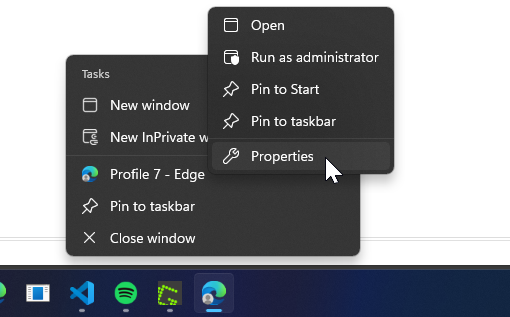
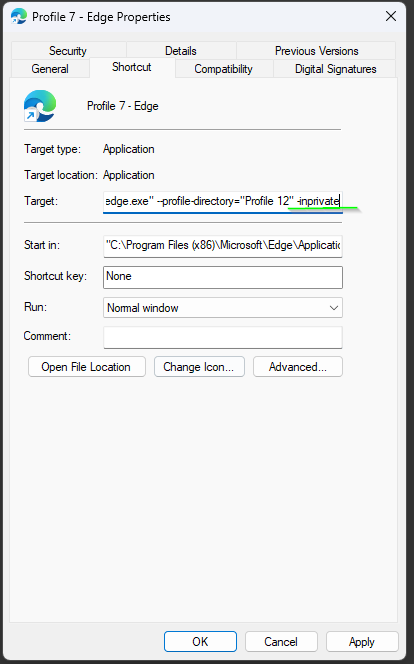
In the Target field, scroll all the way to the end then make a space and add -inprivate like in the picture below. Hit Apply and OK.
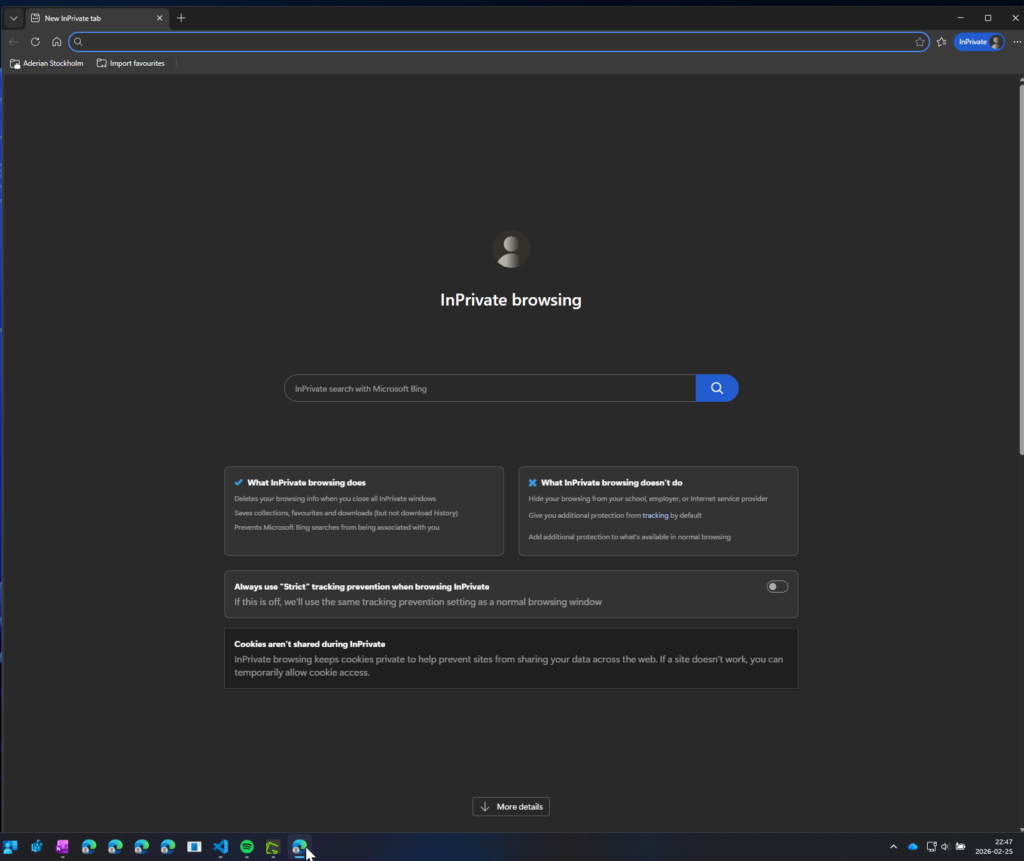
Close that Edge window and open it again and you’ll notice it opens in InPrivate mode
Repeat this step as many times as you like
By repeating the steps above you can create as many profiles as you need to be able to run completely isolated InPrivate sessions in Microsoft Edge. As you can see in my taskbar I have a bunch of profiles created so I never have to worry about “running out” of InPrivate sessions.

That was all for today. A short but yet very useful post today. Please consider subscribing if you like what I do, it helps a lot! Until next time!
Leave a Reply