Trying to increase the secure score in Microsoft 365 can be a real time consuming task when adjusting each recommendation manually. Luckily, there are some really easy changes you can make to take your tenant security to the next level and also increase your secure score. I also decided to utilize the power of Powershell to bulk together some of the features that I think should be enabled in every tenant for Teams and Exchange Online, so you don’t have to do each task individually.
- ASR Rules in Intune (~15% increase)
- Standard Protection in Exchange Online (~15% increase)
- Additional security settings for Teams and Exchange using just one Powershell script (~10% increase)
- Conclusion
ASR Rules in Intune (~15% increase)
Attack Surface Reduction rules in Intune is a really easy way to up your secure score. As the name indicates, these rules drastically minimizes the potential attack surface are that a hacker can utilize for taking control over your device.
Create your ASR rule collection by going to Endpoint Security > Attack surface reduction > Create Policy > Platform: Windows > Profile: Attack Surface Reduction Rules
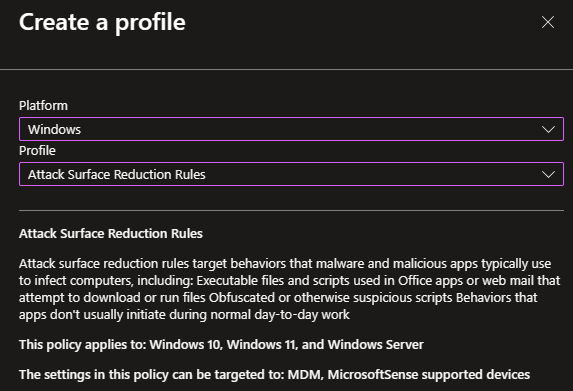
I recommend implementing this for a pilot group of users that have a critical role within the organization. You have two ways to go here.
- Put all the rules you want to use in Block mode and carefully watch how it affects the group of test users and wait for their feedback before deciding if it works for their organization.
- Put all the rules you want in Audit mode and carefully watch how it implements the customers enviornment for the group of test users and then gradually switch the rules to Block mode.
I set all my ASR rules to block and disabled Controlled Folder Access in my tenant. I assigned it to the dynamic All Devices.
Depending on your previous security settings the ASR rules will approximately up your secure score with ~15%.
Standard Protection in Exchange Online (~15% increase)
The built in Exchange Online Protection is a really good baseline to get anti-spam, anti-malware and anti-phising protection for your users that also results in a good increase in your secure score.
To find it go to the Security Center over at https://security.microsoft.com
Go to Email & collaboration > Policies & rules > Threat policies > Preset security policies
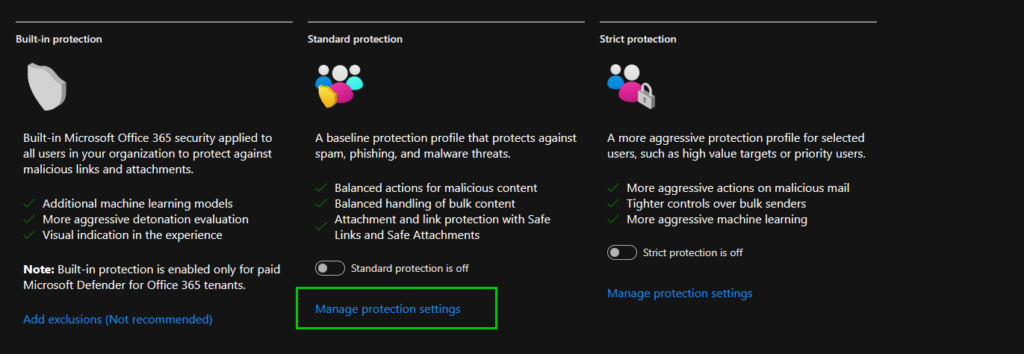
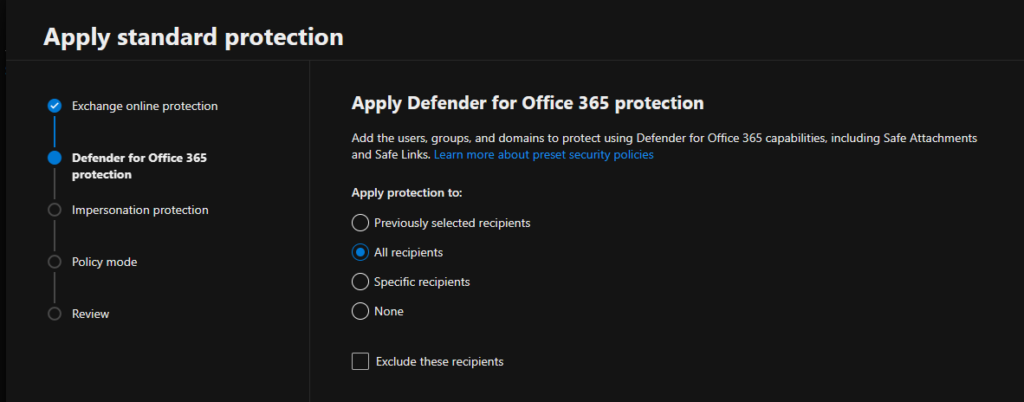
Here we have three options to choose from. The base level called “Built-in protection” is always enabled by default. Today we will look at the standard protection but as you see below there is also a strict protection in case you want a more aggresive security filter. To get started, hit ‘Manage protection settings’ in the Standard Protection policy.
Below is just the settings I recommend, but this always differs from customer to customer.
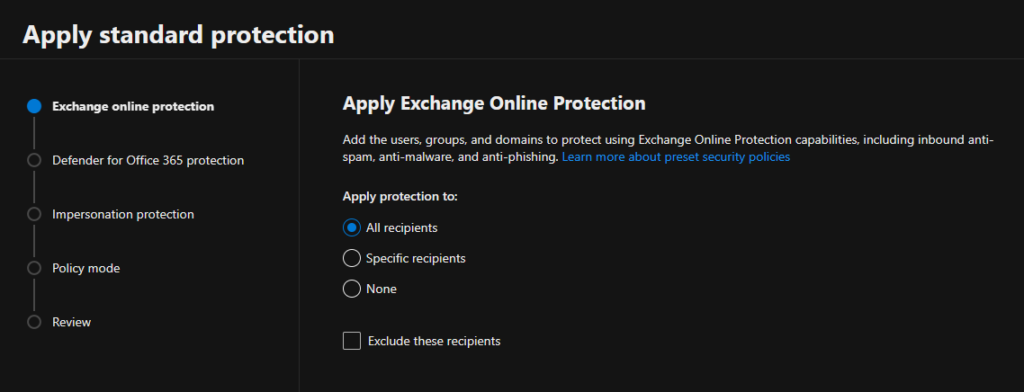
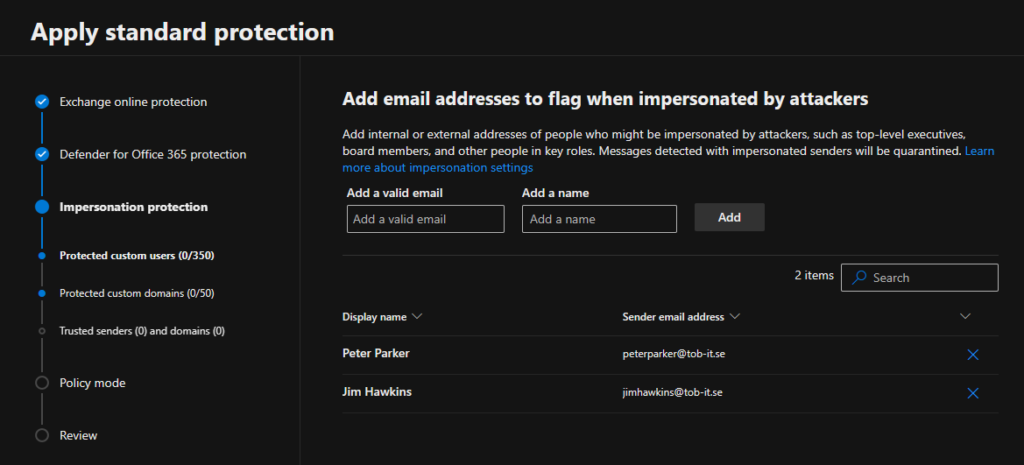
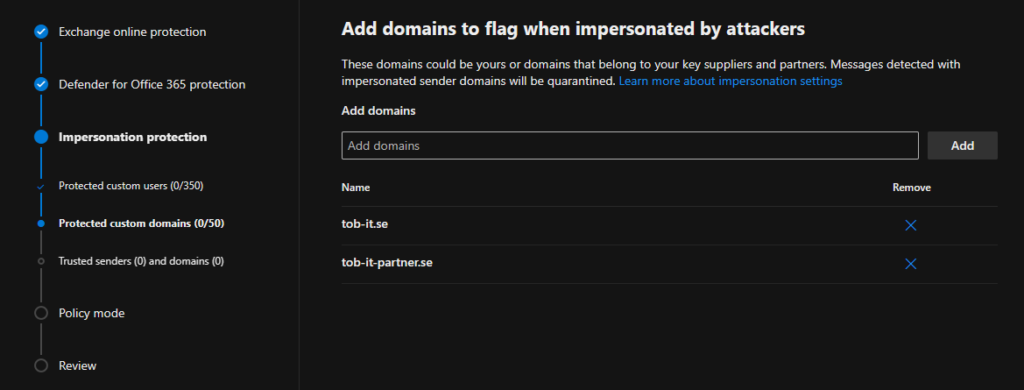
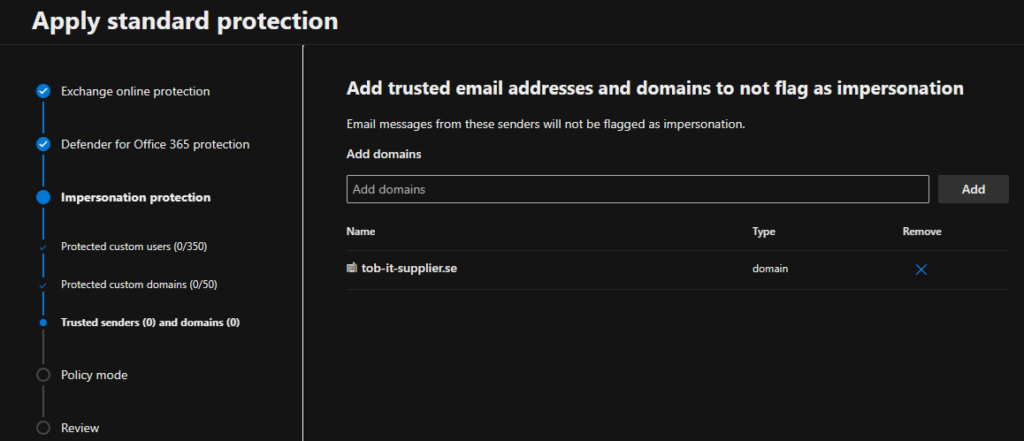
In the Impersonation protection you select important people within and outside of your organization, you specify which domains you want to protect from impersonation attacks and also If you have any suppliers or anything that you want to mark as ‘Trusted senders’.
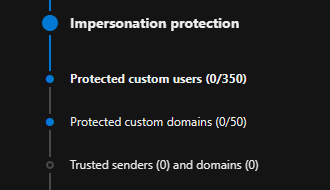
Example settings for impersonation:
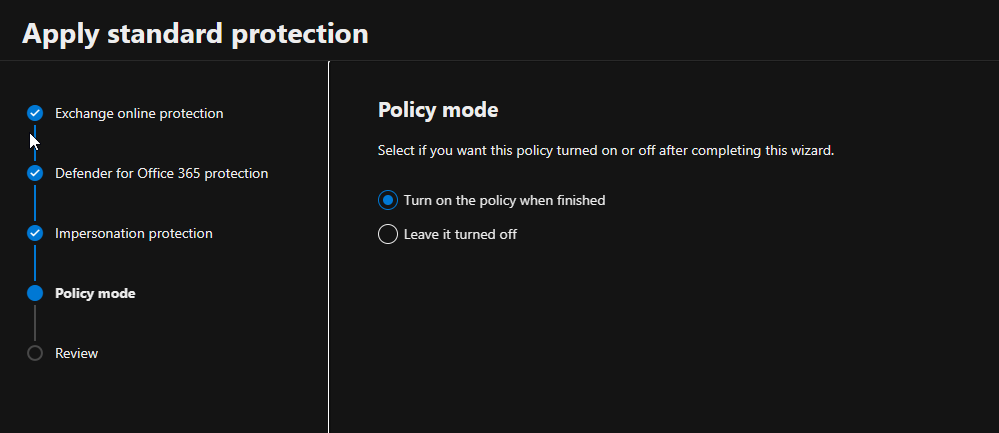
In the last step you can turn on the policy immediately after completing the wizard.
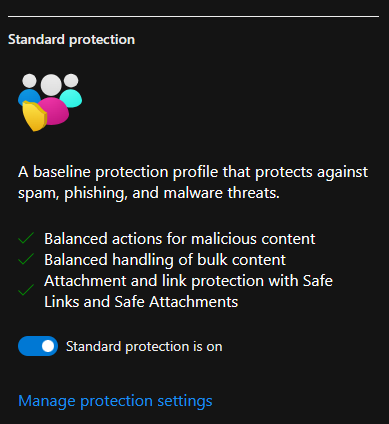
Review your settings and hit ‘Confirm’. As you can see below ‘Standard protection’ is now turned on and your secure score should increase with approximately ~10%.
Additional security settings for Teams and Exchange using just one Powershell script (~10% increase)
I got sick and tired of adjusting small settings in the Teams and Exchange admin portal. It was time consuming and boring hence why I gathered all settings in one Powershell script. Each setting is described in the script, but you can also review your secure score for more in-depth descriptions of each task.
First of all you need to have the Exchange Online and Teams Powershell module installed to be able to run this. Install them using the command lines below:
Install-Module -Name MicrosoftTeams -Force -AllowClobberInstall-Module -Name ExchangeOnlineManagementAlways review each setting before running a script to make sure it suits your needs! Below is the script for the Teams and Exchange Online secure score hardening:
## SECURE SCORE HARDENING BY TOBIAS ERIKSSON, TOB-IT.SE ##

## TOTAL INCREASE OF ALL SETTINGS: ~11,5%

### CONNECT TO RELEVANT SERVICES ###

# Connect to Exchange Online
Connect-ExchangeOnline
# Connect to Teams
Connect-MicrosoftTeams

############################################################
### EXCHANGE ONLINE. Totalt secure score increase ~ 7,2% ###
############################################################

# 1. Ensure additional storage providers are restricted in Outlook on the web. 1,8%
Set-OwaMailboxPolicy -Identity OwaMailboxPolicy-Default -AdditionalStorageProvidersAvailable $false

# 2. Enable MailTips for end users, 1.08%
 Set-OrganizationConfig -MailTipsAllTipsEnabled $true -MailTipsExternalRecipientsTipsEnabled $true -MailTipsGroupMetricsEnabled $true -MailTipsLargeAudienceThreshold '25'

# 3. Ensure Microsoft 365 audit log search is Enabled, 1,08%
Set-AdminAuditLogConfig -UnifiedAuditLogIngestionEnabled $true

# 4. Enable mailbox auditing for all users, 1,08%
Set-OrganizationConfig -AuditDisabled $false

# 5. Enable modern authentication for Exchange Online, 1,08%
Set-OrganizationConfig -OAuth2ClientProfileEnabled $True

# 6. Enable and create a Safe Links policy fpr Office applications, 1,08%
# Create the Policy
$params = @{

Name = "CIS SafeLinks Policy"
EnableSafeLinksForEmail = $true
EnableSafeLinksForTeams = $true
EnableSafeLinksForOffice = $true
TrackClicks = $true
AllowClickThrough = $false
ScanUrls = $true
EnableForInternalSenders = $true
DeliverMessageAfterScan = $true
DisableUrlRewrite = $false

}

New-SafeLinksPolicy @params

# Create the rule for all users in all valid domains and associate with Policy
New-SafeLinksRule -Name "CIS SafeLinks" -SafeLinksPolicy "CIS SafeLinks Policy" -RecipientDomainIs (Get-AcceptedDomain).Name -Priority 0

# 7. Ensure 'External sharing' of calendars is not available, 1,8%
Set-SharingPolicy -Identity "Default Sharing Policy" -Enabled $false

####################################################################################################
 ### MICROSOFT TEAMS. Changes are made to org wide policy. Totalt secure score increase ~ 2,52%  ###
####################################################################################################

 # Only invited users should be automatically admitted to Teams meetings, 0,72%
Set-CsTeamsMeetingPolicy -Identity Global -AutoAdmittedUsers InvitedUsers
Write-Host "Only invited users should be automatically admitted to Teams meetings - DONE!" -ForegroundColor DarkMagenta

# Configure which users are allowed to present in Teams meetings, 0,72%
Set-CsTeamsMeetingPolicy -Identity Global -DesignatedPresenterRoleMode OrganizerOnlyUserOverride
Write-Host "Configure which users are allowed to present in Teams meetings - DONE!" -ForegroundColor DarkMagenta

# Limit external participants from having control in a Teams meeting, 0,36%
Set-CsTeamsMeetingPolicy -Identity Global -AllowExternalParticipantGiveRequestControl $false
Write-Host "Limit external participants from having control in a Teams meeting - DONE!" -ForegroundColor DarkMagenta

# Restrict anonymous users from starting Teams meetings. 0,36%
Set-CsTeamsMeetingPolicy -Identity Global -AllowAnonymousUsersToStartMeeting $false
Write-Host "Restrict anonymous users from starting Teams meetings - DONE!" -ForegroundColor DarkMagenta

# Restrict anonymous users from joining meetings. 0,36%
Set-CsTeamsMeetingPolicy -Identity Global -AllowAnonymousUsersToJoinMeeting $false
Write-Host "Restrict anonymous users from joining meetings - DONE!" -ForegroundColor DarkMagenta

# Restrict dial-in users from bypassing a meeting lobby. 0,36%
Set-CsTeamsMeetingPolicy -Identity Global -AllowPSTNUsersToBypassLobby $false
Write-Host "Restrict dial-in users from bypassing a meeting lobby - DONE!" -ForegroundColor DarkMagentaCode language: PHP (php)
Conclusion
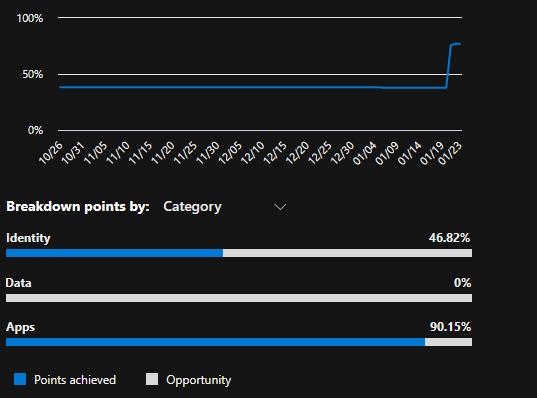
As you can see below, after making these changes, we made an impressive increase of 39,21% to our secure score. Of course this increase can vary based on what you have set up before going through all steps above. Remember that the secure score updates in intervals of 24-48h so be patient once you made your changes!
Secure score before these changes:
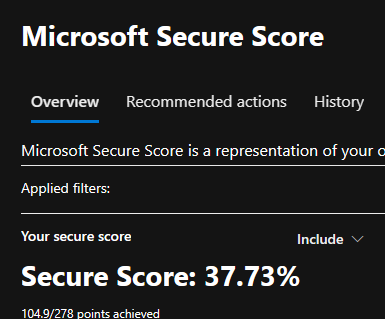
Secure score after these changes:
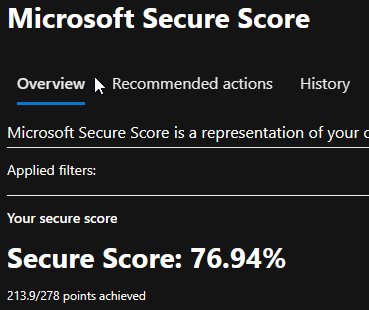
Regarding categories this mainly affects the Apps category and a little bit of Identity as well. Regarding the Data category, most of the actions that give points in that category require some kind of E-license (E3/E5).
Thanks for following along and enjoy your new and improved secure score!
Until next time!
Leave a Reply