
In today’s post we’ll be going over how to migrate GPOs to Intune. From planning and cleaning, to thinking and structuring a bit, to using GPO analytics to do 1-to-1 migrations of GPOs, what to do when GPO analytics says that your GPO has 0% Intune capability (there is never 0% capability, right?). Buckle up, we’re in for a long one!
Planning and cleaning up
This first part is the “boring but necessary” part. Going from on-prem and GPOs to Modern device management with Intune shouldn’t be a one-to-one lift and shift migration. Take this time to really evaluate which settings and GPOs are still relevant for your organization to keep.
From what I’ve experienced, the best part is always to carefully review all your GPOs, what they are doing and see which settings are relevant to keep and which one’s are legacy that we can throw away. Intune should feel like a fresh modern start.
Make some notes on which one’s to keep and which one’s you should retire.
Another thing to keep in mind is DO NOT try and mimic your GPOs and on-prem structure completely. Going cloud-native with Microsoft 365 as the ‘new domain controller’ and Intune on the device management part replacing the GPOs also means adapting to more modern solutions and changing your way of working and thinking. Some examples of this could be:
- Move your files from mapped network drives to Sharepoint.
- Go from app servers and license servers to packaged applications with license files deployed on user level and SaaS applications where it’s available.
- Re-provision your computers in Autopilot instead of re-imaging using old tools like WDS or SCCM.
These were just some of the things that came to mind when writing this that is different when it comes to ways of working when going cloud native. I think you get my point, adapt to the cloud way of working or GTFO 😂
Exporting the GPOs you want to keep
In order to export the GPO’s you want to move to Intune do the following:
- Open Group Policy Management on your domain controller
- Go to Group Policy Objects and find your desired GPO
- Right-click it and select “Save Report” and save it as a .XML-file.
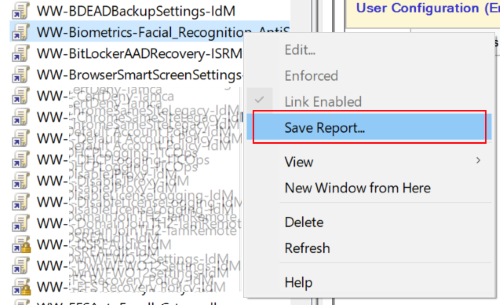
Picture borrowed from this Microsoft Learn article on the topic
4. Do this for each GPO you decided you want to move to Intune and place them all in the same folder to keep for the next step.
Using Group Policy Analytics to convert GPO’s to Intune policies
Below are some example GPOs I will be migrating for demonstration purposes:
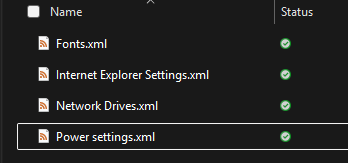
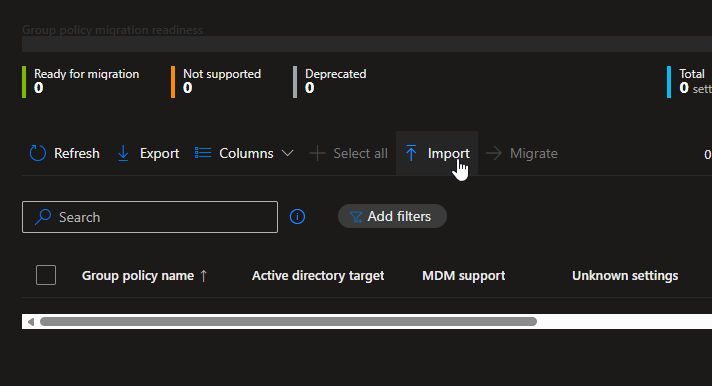
Go to Intune > Devices > Group Policy analytics and select “Import”. You can choose to upload one at a time or all reports at once. I will be doing all four of my GPOs
After selecting all your desired GPO’s you simply hit “Next”
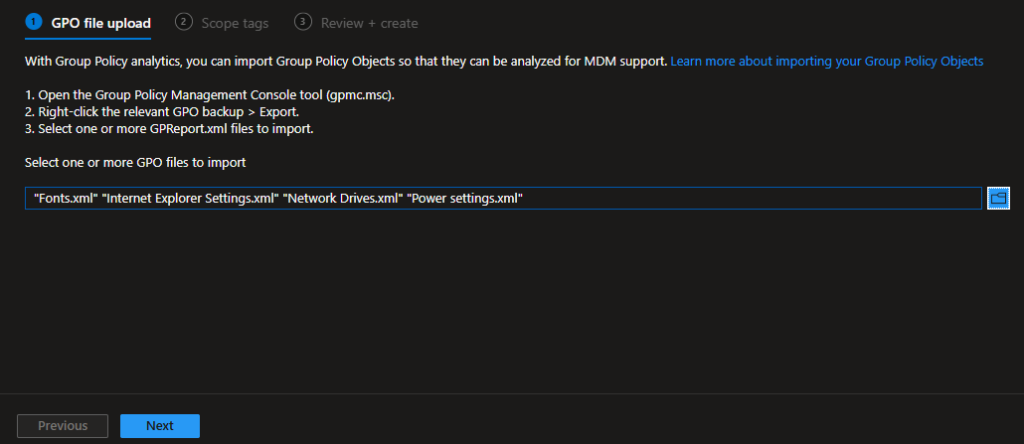
Use Scope tags if you want to, if not, just hit “Next”

On the final page you get an overview of your imported GPO’s. Hit Create to start creating your report
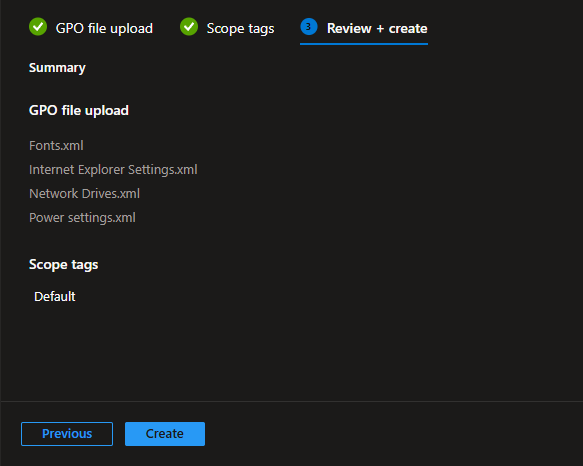
Depending on how many GPO reports you uploaded it might take a few minutes to generate the report. Once it’s done you will have a clear overview on which GPO’s can directly translate to policies in Intune.
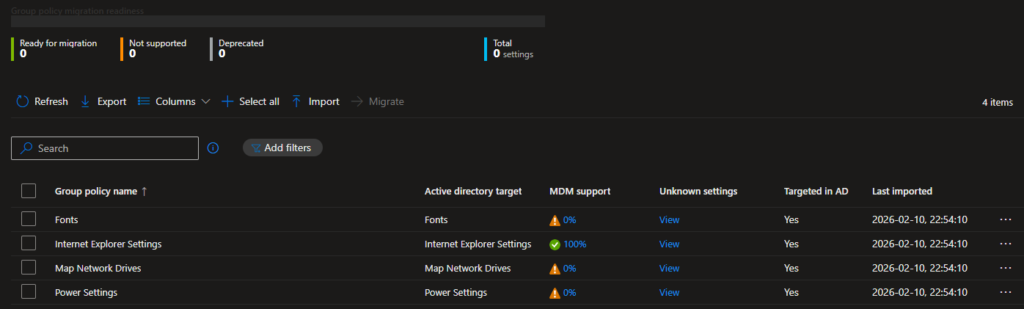
As you can see in my report it says 0% compatibility with the Fonts, Map Network Drives and Power Settings GPO. Here is the tricky part. Does that mean we can’t have those type of settings in Intune? Not really, it just means these settings doesn’t have an exact corresponding policy in Intune. However, that doesn’t mean we are doomed. There is almost always another way to do things and achieve those settings anyway.
Later in this post we’ll look at some specific workarounds for the GPOs I wasn’t able to migrate and how to solve it in Intune. But first, let’s look at migrating our GPO with Internet Explorer Settings that actually translates directly to an Intune policy.
Migrating a GPO to Intune policy
By clicking the 100% on the Internet Explorer Settings GPO we can see each corresponding setting as an Intune policy.
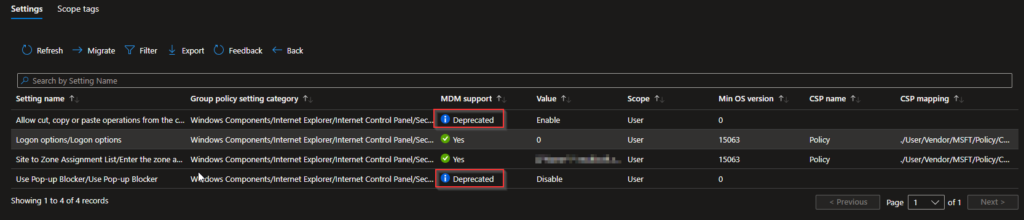
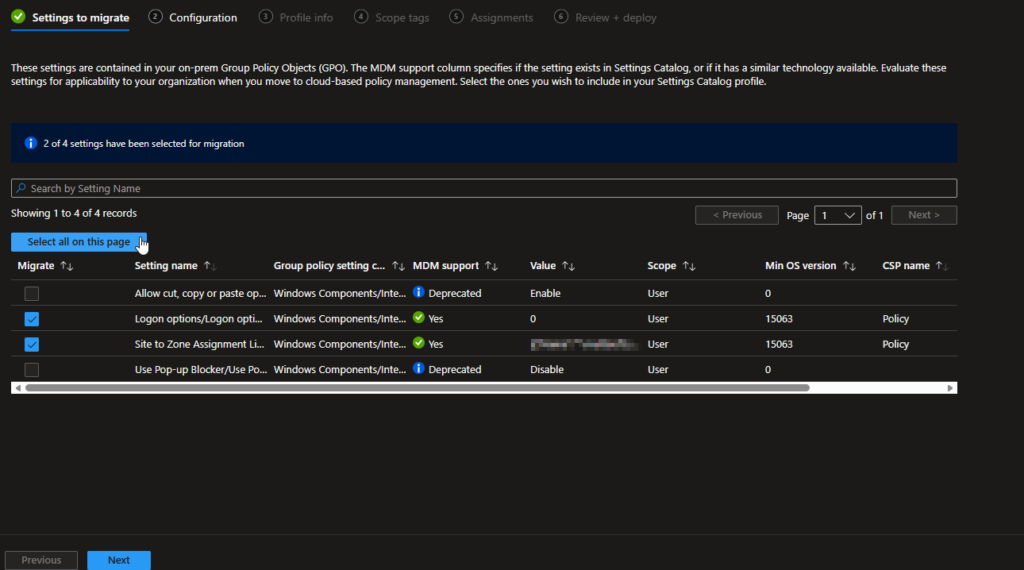
As you can see on the picture above, two out of the four settings we have are deprecated so those will be removed automatically in a later step.
To migrate this GPO to an Intune policy we simply hit “Migrate” at the top.
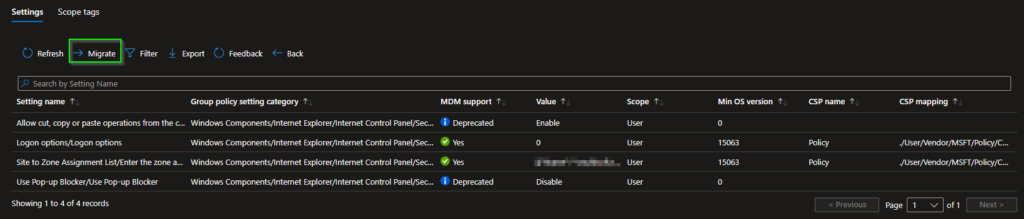
As you can see below, Group Policy Analytics detects that the two deprecated settings here as well so we can simply hit “Select all on this page” and it will select all other settings for us. Once that’s done hit “Next”
On the second page which is “Configuration” we can see which settings are actually in the GPO. Since my test GPO contains some sensitive information I had to blur it, but I think you get the point. Hit “Next” after reviewing your settings.
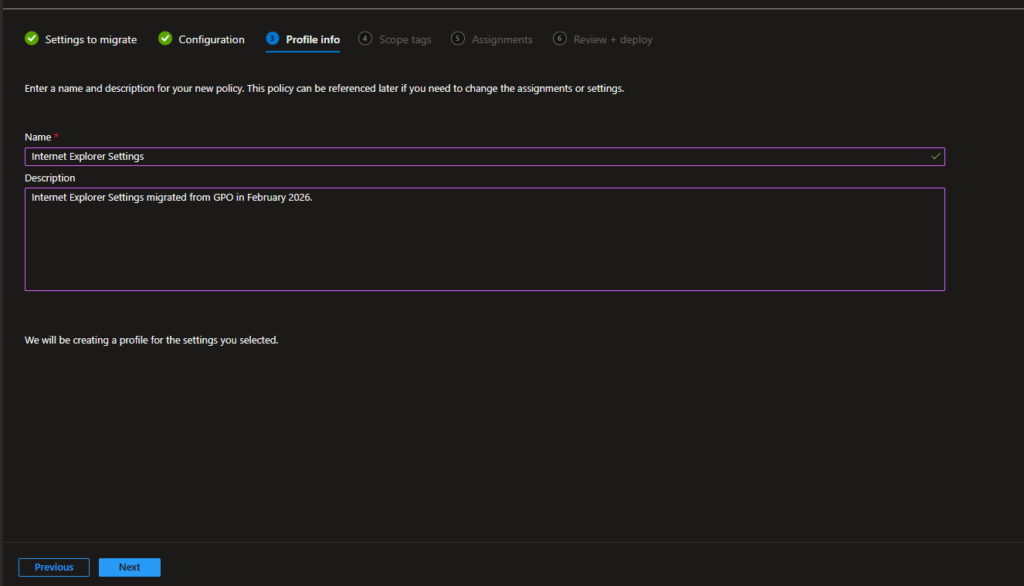
Give your Intune policy a name and description and hit “Next”.
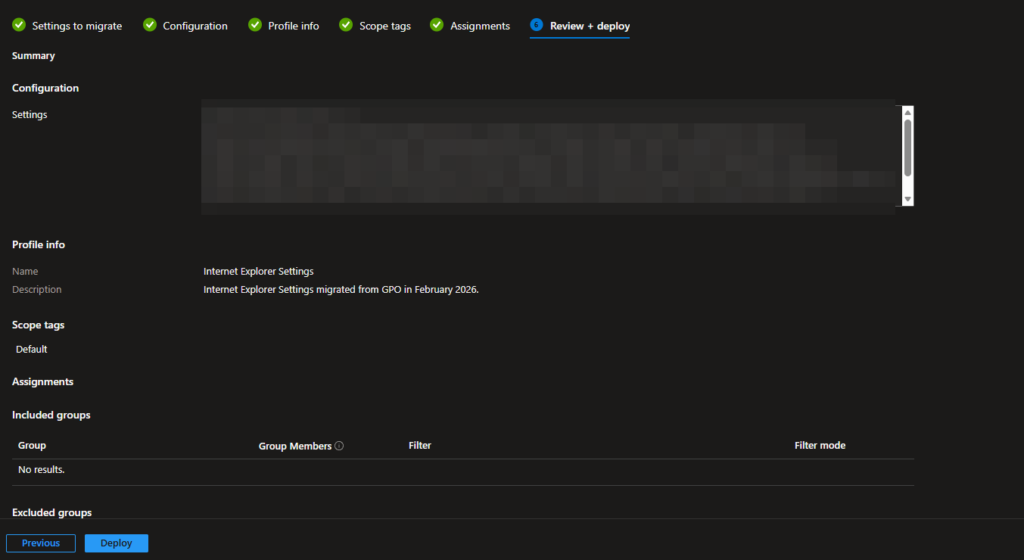
I skipped the Scope Tags and Assignments page for now. Review your policy one last time on the “Review + deploy” page so everything looks correct and then hit “Deploy”
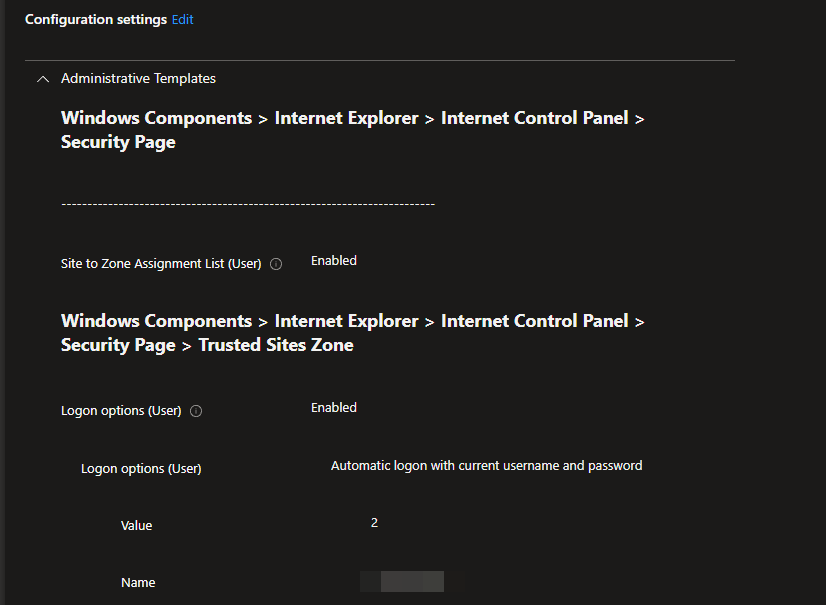
After that Intune will create the policy for you and you are ready to deploy it to your Intune enrolled devices. Below are some of my settings in my new Intune policy that we successfully migrated from a GPO 🎉
What to do when Group Policy Analytics says 0%
As we saw previously I had some settings that said 0% compatibility. As mentioned above, this just means that there is no corresponding policy in Intune for that exact GPO. In a lot of cases we can solve this using Powershell scripts and deploy them as platform scripts or Win32 apps or use custom ADMX policies or some other cool solution from the community. I am a big fan of using Win32 apps so that’s what I usually turn to. Below is how I solved my GPO’s that said 0% in this case:
Fonts – I have a separate article on how to deploy fonts in Intune HERE that I used in this case.
Map Network Drives – It’s a real pain that this doesn’t work natively in Intune since a lot of people still need to use this, luckily there are some really good community tools out there to solve the drive mapping problem.
This article by Nicklas Olsen is really great and shows you how to set up mapped drives in Intune using Custom ADMX templates. I found a lot of articles on this topic to be over complicated but Nicklas does a really good job of keeping it short and straight to the point! I have used this method previously and can confirm it works like a charm!
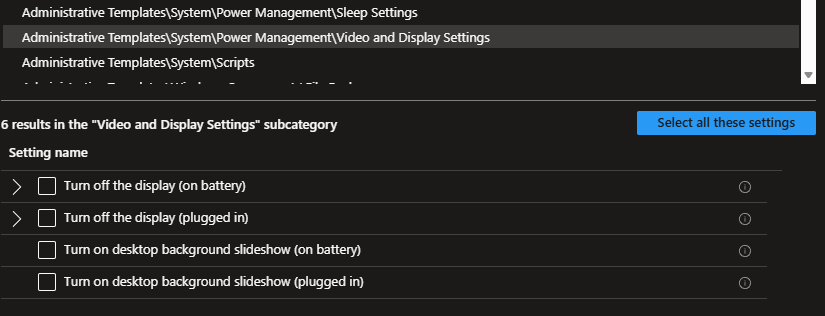
Power Settings – Power settings are available in Intune but sometimes the GPO might be set up so it doesn’t recognize the corresponding policy in Intune. Create a new settings catalog and you’ll find the settings under Adminstrative Templates\System\Power Management\Sleep Settings and Adminstrative Templates\System\Power Management\Video and Display Settings
A word of caution about hybrid joining and enrolling in Intune.
You might be thinking to yourself; now that I have all my GPOs migrated I just hybrid join my devices to Entra and enroll them in Intune. Well… technically you can BUUUUT I wouldn’t recommend it unless it’s absolutely necessary. Hybrid join should be seen as a temporary step in your cloud native journey that should be taken only if absolutely necessary.
The reason for this is with hybrid joining and enrolling in Intune we suddenly have two sources that affects our devices, the AD with GPOs and Intune with configuration policies. This can of course lead to a lot of headache when something goes wrong. since you have two potential places to debug. Conflicting policies is also every day food when we talk about hybrid and it’s a scenario you want to avoid if not absolutely necessary.
I will have a totally separate post in the future all about hybrid joining devices and enrolling to Intune, but in short this is my recommended approach 👇
- If possible ALWAYS wipe the devices and enroll them to Intune as cloud-only. I can’t stress this enough. Some AD’s have been around for 10-15 years and we have no idea to determine which GPOs that has been around during the last couple of years (unless you were the one setting everything up, which is not always the case when you get a new customer for example).
- If hybrid join is absolutely necessary, I would recommend just assigning the “new” apps and policies from Intune. If you have a policy in Intune that also exists in the AD, let the Intune do the job to get the device to a ‘mostly cloud’ managed state. There is a settings catalog policy to allow Intune policies to take precedence over GPOs (the opposite is default), which I recommend configuring in case of conflict. This makes it a bit easier to debug when shit hits the fan, since you know that Intune should always win if the settings are matching. Just search for MDM Wins and you’ll find it 👇

Bonus tip: Create dynamic groups for Entra Joined devices and Hybrid Joined devices
Usually if you have a mix of Entra Joined and Hybrid Joined devices you might want to separate these to be able to get a good overview of the state of your Intune environment and also to assign different things depending on if it’s cloud-only or hybrid joined.
The rules below uses the deviceTrustType attribute to determine if it’s managed by AzureAD (Entra) or ServerAD (Local AD). To avoid stale Entra devices in the groups I also set the rule to only include Windows devices that are managed by Intune. Both these are dynamic device groups.
Entra Join rule:
(device.deviceTrustType -eq "AzureAD") and (device.deviceOSType -eq "Windows") and (device.deviceManagementAppId -eq "0000000a-0000-0000-c000-000000000000")Code language: JavaScript (javascript)Entra Hybrid Join rule:
(device.deviceTrustType -eq "ServerAD") and (device.deviceOSType -eq "Windows") and (device.deviceManagementAppId -eq "0000000a-0000-0000-c000-000000000000")Code language: JavaScript (javascript)One last tip and final thoughts
It can be hard to know where to look when you have a GPO that doesn’t 100% line-up with Intune that is critical for your environemt. In short this is what I usually do:
- Review the Settings Catalog library first to see if you can find anything that suits your needs there.
- If it’s not there, you likely have to turn to Powershell and Win32 apps. There is a lot of good blog posts and community scripts out there to solve almost everything you need!
Also remember what I said previously, Intune and modern device management is not the same as a local AD with GPOs so you might have to change your way of thinking a little bit and adapt to new ways of working when going cloud-native.
Hopefully this helped you in your journey to go cloud-native with your device management. Please leave a comment and tell me if this helped you or share your best tips when moving from a local AD to Intune.
Also consider subscribing to my blog. I work full time as a Cloud Engineer in Microsoft 365 and write almost all of my blog posts in my spare time (when my family is sleeping) so it truly helps me out!
Thank you so much for reading, until next time!
Leave a Reply