
The Sharepoint sync has been a hot topic for quite some time. It’s bulky, slow and yet a lot of users and organizations still request it and wants to use it. Today we’ll briefly go over the pros and cons of sync vs shortcut in OneDrive. If you still choose to go for the Sharepoint sync I’ll give you the full cycle of setting it up, speed up the process and remove the 8 hour threshold that Intune sets and also how to remove it for users via Powershell. Buckle up, cause we’re in for a ride!
- Why we still use the Sharepoint sync and the big con of “Add shortcut to OneDrive”
- How to work with “Add shortcut to OneDrive”
- The challenging part of the SP Sync
- Sync the library via Intune
- Speed up the process – TimerAutoMount in RegEdit
- Cleaning up when the sync is in place
- Remove the sync via Powershell (kind of)
- Final thoughts
Why we still use the Sharepoint sync and the big con of “Add shortcut to OneDrive”
Without going into too much detail there is one big reason why we still use Sharepoint sync and that is admin control. As of today, there is no smooth way to publish shortcuts in users OneDrive’s to Sharepoint document libraries via Intune hence why a lot of people still rely on the sync. That means that working with shortcuts in OneDrive is a completely user-driven process and as an admin, you have no control!
You might think “How hard is it for users to just hit ‘Add shortcut to OneDrive’?”.
The thing is, seeing it from an end-user perspective, we have to understand that users wants the “up and ready to go” experience right out of the box. Also, a lot of users are used to working with the sync rather than shortcuts and without admins being able to set it up for them, users will refuse to change. I know this is stubborn, but believe me I’ve seen it and this is what it can look and sound like in real scenarios whether we like it or not.
So, until Microsoft finds a good way to publish shortcuts in users OneDrive’s from an admin perspective the sync option will still be considered an option in a lot of scenarios.
How to work with “Add shortcut to OneDrive”
So now we have already mentioned the big cons of shortcuts, let’s talk about some pros in case you choose to go with this option and also go over how to set it up.
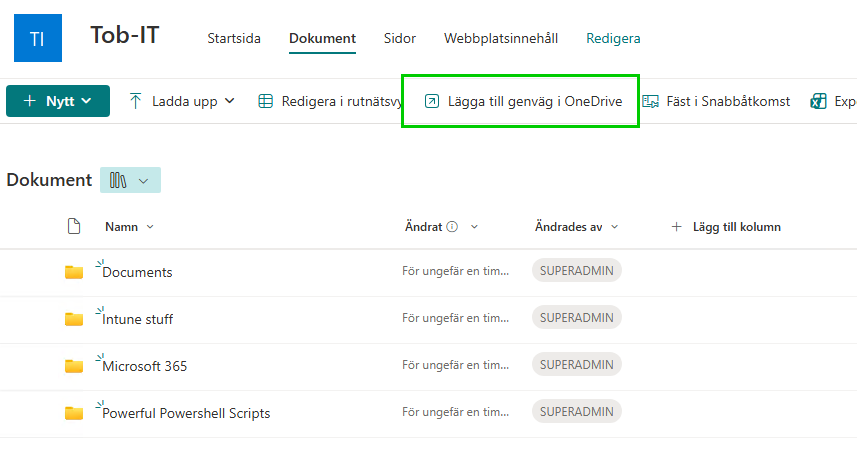
Go to the Sharepoint site and navigate to the document library that you wish to add a shortcut to and hit “Add shortcut to OneDrive” 👇
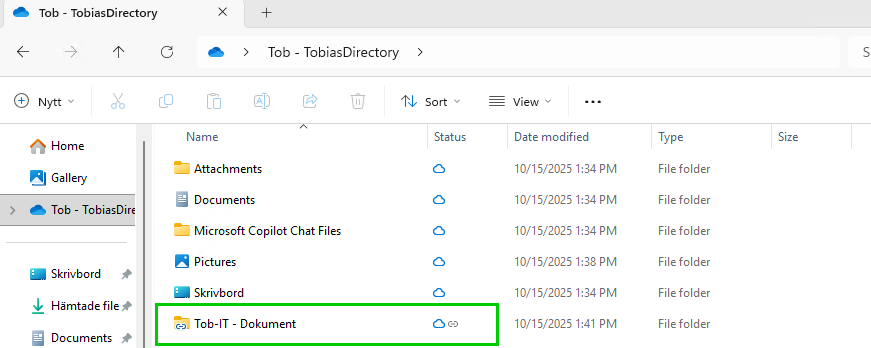
After letting it sync you’ll find the folder in your OneDrive root folder 👇
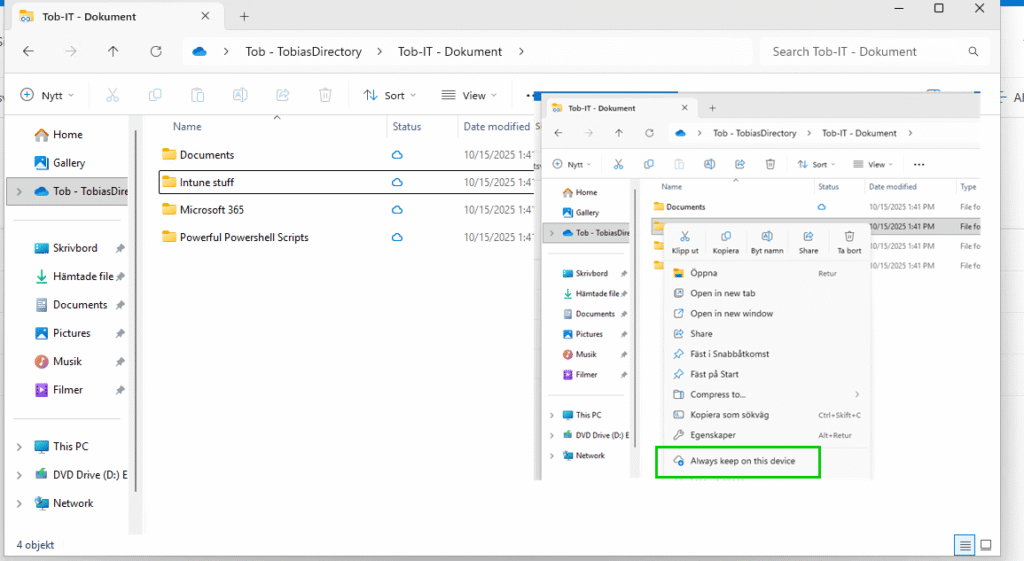
When going to the folder you can see it acts just as a regular OneDrive folder with Files On-Demand and the ability to keep files on your device if you like 👇
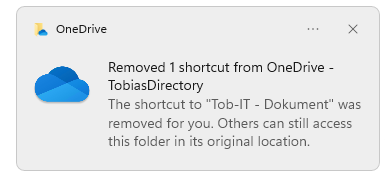
One of my favourite parts of working with shortcuts is you don’t have to worry about deleting the whole library when removing a shortcut. You simply just delete it if you’d like to and OneDrive tells you it’s fine and others can still access the files:
Another cool feature with shortcuts is that if you are trying to add a shortcut to a library that is already utilizing the sync you will be met by this:
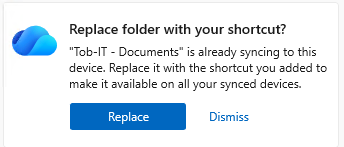
This means we don’t have to worry about OneDrive adding another folder with a (1) like the sync does if you accidentally sync it twice. Also as mentioned in the picture, it’s available as soon as you login on any device which is a really nice feature. Now, on to talking about the sync instead:
The challenging part of the SP Sync
For context, if you want to delete a Sharepoint sync folder without deleting the whole library for everyone you have to:
- Stop the OneDrive sync and quit OneDrive
- Make sure the cloud icon is gone from the synced library folder
- Delete the folder which adds all your cached data to your trash bin
- Start OneDrive again
This is a real pain since a lot of users end up accidentally deleting full document libraries.
Another scenario is if the sync comes from Intune, it might add the library again with a (1) at the end in case you stop the sync without removing the actual folder or if a user manully synced a folder that also comes from your Intune policy.
As you see, it’s a real shit show and can cause a lot of problems.
Next I’ll go over a full lifecycle management process in case you choose to go with the sync option to Add it, speed up the process and also remove it via Powershell.
Sync the library via Intune
Syncing the library via Intune is pretty straight forward. First go to the site you wish to sync > Hit ‘Sync’ button in the menu bar (might be hidden by the three dots) > Close the OneDrive popup in your browser > Hit “Copy library id”.
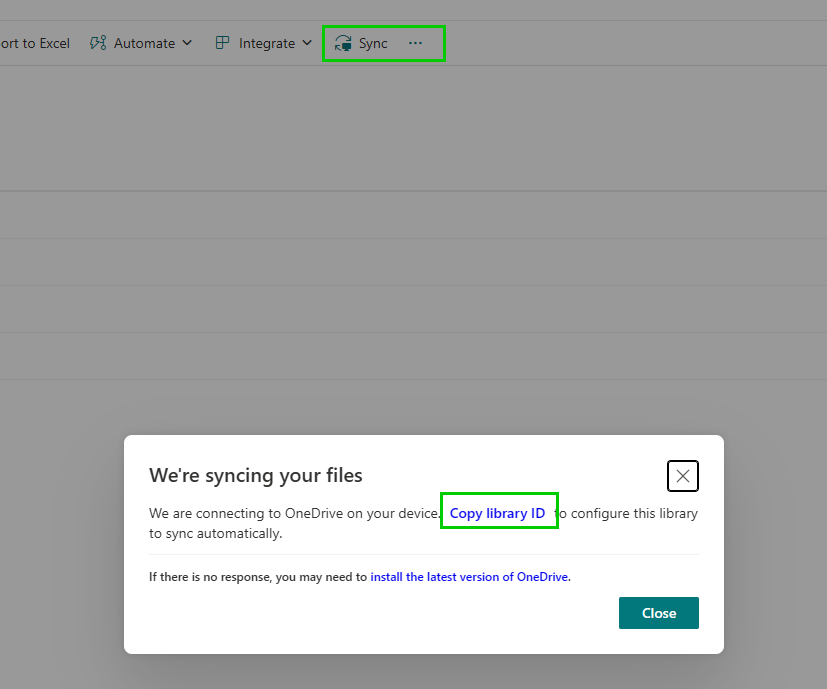
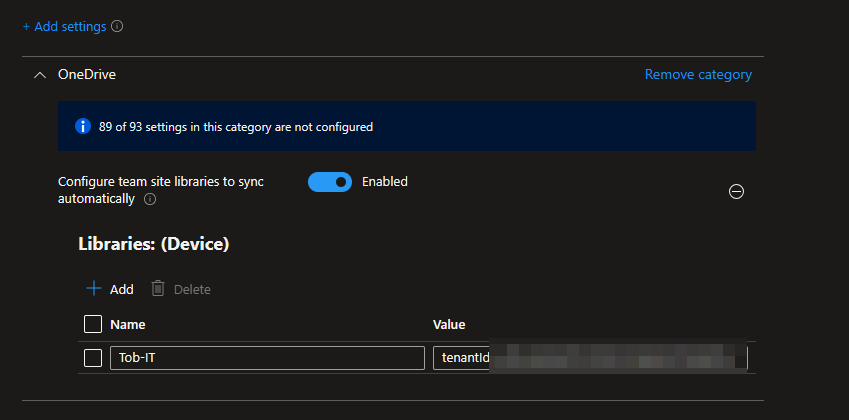
Next head over to Intune and create a settings catalog policy and search for the Configure team site libraries to sync automatically in the OneDrive category. Add a name and your library ID.
Speed up the process – TimerAutoMount in RegEdit
This solution was found by the Intune guru Rudy Ooms back in 2020. I’ll leave a link to his article on the topic here
Basically what we have to do is change the value of this key in regedit to 1.
HKCU\Software\Microsoft\OneDrive\Accounts\Business1\TimerAutoMountThis key is really sensitive because:
- It’s created when the Sharepoint sync policy is landing on the device
- It’s only there during the first boot up after OOBE
- “After a successful Onedrive startup and checking for sites to mount this key will be reset” (Rudy Ooms, 2020, link)
- If a user signs out or restarts the computer it will also disappear.
I have tested different solutions to change this key during deployment before. Sometimes I packaged it as a Win32 app and sometimes as a platform script. I haven’t been able to find a really good method that is consistant and always works. BUT THEN I SAW IT!
I went back to Rudy’s article in order to see if I could find any clues on how to do this in the most consistent way and that’s when I noticed he hinted the ultimate solution for this way back in 2020 👇

So I decided to go for the task schedule solution. With a little help from this video from Steve Weiner over at GetRubix and a little tweaking since the key is in HKCU I got it working just fine. Below is the script to create the task (name it scheduledTask.ps1):
# Define paths
$destination = "C:\ProgramData\Scripts"

# Create destination folder if needed
if (!(Test-Path $destination)) {
    New-Item -ItemType Directory -Path $destination -Force | Out-Null
}

# Create the PowerShell script
$scriptText = @"
Set-ItemProperty -Path "HKCU:\Software\Microsoft\OneDrive\Accounts\Business1" -Name "TimerAutoMount" -Type QWord -Value 1 -Force
"@
$scriptPath = Join-Path $destination "timerautomount.ps1"
$scriptText | Set-Content -Path $scriptPath -Force -Encoding UTF8

# Create Scheduled Task
$taskName = "Set TimerAutoMount to 1"
$taskAction = New-ScheduledTaskAction -Execute "powershell.exe" -Argument "-Executionpolicy bypass -File `"$scriptPath`""
$taskTrigger = New-ScheduledTaskTrigger -AtLogOn
$taskPrincipal = New-ScheduledTaskPrincipal -UserId "$env:USERNAME" -LogonType Interactive -RunLevel Highest

Register-ScheduledTask -TaskName $taskName -Action $taskAction -Trigger $taskTrigger -Principal $taskPrincipal -Description "Sets the TimerAutoMount key to lower the 8 hour sync threshold for SharePoint libraries"Code language: PHP (php)
Package it up, deploy it in Intune as a win32 app with the following properties:
- Install command = cmd /c start /min “” powershell.exe -ExecutionPolicy bypass -Windowstyle hidden -File .\scheduledTask.ps1
- Install behavior = USER (important since we’re working with HKCU)
- Detection = C:\ProgramData\Scripts\timerautomount.ps1 – File or folder exists
With this solution we can ensure the key is there EVERYTIME a user signs in on the device thanks to the settings in the task. Really consistant and clean in my opinion!
Below is a video showing you the whole process when enrolling a new device 👇
Cleaning up when the sync is in place
It can be kind of annoying to see a Powershell window pop up on every login. When you have verified that your users has the Sharepoint sync in place you can deploy this from Intune (as a win32 or platform script) to remove the timerautomount.ps1 script and also delete the schedueled task
# Define paths and task name
$destination = "C:\ProgramData\Scripts"
$scriptPath = Join-Path $destination "timerautomount.ps1"
$taskName = "Set TimerAutoMount to 1"

# Remove Scheduled Task if it exists
if (Get-ScheduledTask -TaskName $taskName -ErrorAction SilentlyContinue) {
    Unregister-ScheduledTask -TaskName $taskName -Confirm:$false
    Write-Host "Scheduled task '$taskName' removed."
} else {
    Write-Host "Scheduled task '$taskName' not found."
}

# Remove the script file if it exists
if (Test-Path $scriptPath) {
    Remove-Item -Path $scriptPath -Force
    Write-Host "Script file '$scriptPath' deleted."
} else {
    Write-Host "Script file '$scriptPath' not found."
}Code language: PHP (php)
Remove the sync via Powershell (kind of)
This one is a real pain. Once again we have a scenario where we have no real admin control. Users can choose to unsync themselves, but if they do it in the wrong order they might accidentally delete the whole library for everyone (one reason why shortcuts in OneDrive is better as mentioned above).
I spent a lot of time working on a Powershell script that prompts the user to unsync their library via Windows Presentation Framework and then after that the unsynced folder was deleted and OneDrive was restarted. I had some success with this, but it was not a good consistent solution so I decided to give it up.
The second best option I could think of was to simply remove access to the Sharepoint site for the users you wish to unsync. They will recieve a toast notification that their permission has been revoked:
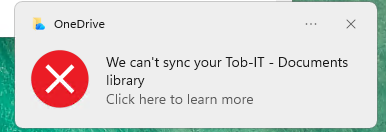
After their permission is revoked, this is what their synced folder will look like once they don’t have access anymore:
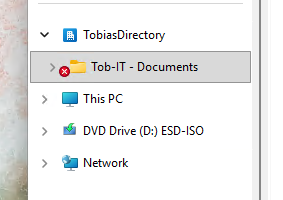
If a user tries to open a file or copy a file from that document library this is what they’ll see:

So that means after you removed the permission you need to instruct the user to click the OneDrive icon in the taskbar and go to Settings > Click the gear icon in the top right corner > Accounts > Hit ‘Stop sync’ on the document library
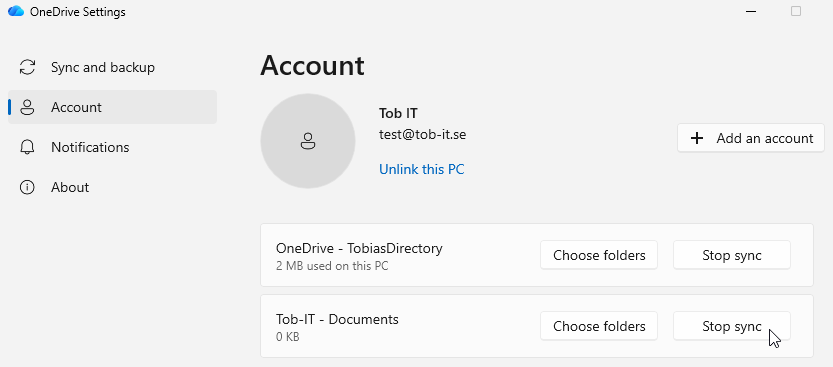
The problem here is after the folder has stopped syncing all the folders will be empty due to the user not having access to anything, but the root folders will still be visible in file explorer as you can see below (notice that the red X is gone and there are no Files On-Demand icons indicating that the folders are synced anymore):

We have two options for this final cleanup of the mess that is the Sharepoint sync.
- Instruct the user to delete the folder manually
(located in C:\Users\UserName\DirectoryName\Document Library Name - Upload the Powershell script below to Intune to delete the folder for them.
If you choose to go with option 2 I think the best option is not instruct the user to go to Company Portal and hit install after they lost their permission.
Below is the two scripts you need (Install script and detection script if you package it as a Win32 app)
Install script:
# Get current user
$UserName = $env:USERNAME

$LocalFolderPath = "C:\Users\$UserName\TobiasDirectory\Tob-IT - Documents"

# Delete synced folder
if (Test-Path $LocalFolderPath) {
    try {
        Write-Host "Deleting synced folder: $LocalFolderPath"
        Remove-Item -LiteralPath $LocalFolderPath -Recurse -Force -ErrorAction Stop
        Write-Host "Folder deleted successfully."
    } catch {
        Write-Host "Failed to delete folder: $($_.Exception.Message)"
    }
} else {
    Write-Host "Folder not found at: $LocalFolderPath (already removed)"
}Code language: PHP (php)
Detection script:
$UserName = $env:USERNAME
$LocalFolderPath = "C:\Users\$UserName\TobiasDirectory\Tob-IT - Documents"

if (Test-Path -LiteralPath $LocalFolderPath) {
    Write-Host "Folder exists: $LocalFolderPath"
    exit 1
} else {
    Write-Host "Folder not found: $LocalFolderPath"
    exit 0
}Code language: PHP (php)
Package it up as a Win32 app and deploy it in Company Portal with a nice logo (IMPORTANT: You need to deploy this in USER context in Intune).
This is the experience for the end user. As you see all they have left after installing is the TobiasDirectory but the document library folder is gone. I could delete the full TobiasDirectory folder as well If I want to remove the sync completely. Just change the path in the script to what you prefer. I choose to keep it this time.

Final thoughts
Hopefully I made some sense of the mess that this is “Sync vs Shortcut” story is. In case Microsoft releases a feature to publish shortcuts in OneDrive via Intune I’ll let you know! Please consider subscribing so you don’t miss it! I don’t earn any money and do most of my posts in my spare time so it really helps. Until next time!


Leave a Reply