I’ve been falling down a rabbit hole of macOS management in Intune lately and it’s been a lot of fun! Today I will show you how to deploy OneDrive for macOS and give it all the right permissions to make it as silent as possible! Since my recent post about shortening the OneDrive Local Path for Windows completely blew up I hope this one does as well, maybe I am slowly turning into “that OneDrive guy” 😂
This works both for Macs that are enrolled via Apple Business/Apple Business Manager or Company Portal as long as their mangement type is Corporate.
What we need to setup for this to work
In order for this to work there are a few things we need to do in Intune;
- Deploy the OneDrive sync client app via Intune
- Settings catalog policy with OneDrive settings
- Settings catalog policy to specify update channel for OneDrive
- A custom mobileconfig policy to grant OneDrive full disk access
- A custom mobileconfig policy to allow OneDrive to run as a background service
Below I’ll walk you through each step of the process and I’ll end this post by comparing the silent deployment vs non-silent deployment!
Deploy the OneDrive sync app via Microsoft 365 apps in Intune.
One thing we have to keep in mind is that the configuration we will setup below (like Known Folder Move) is only supported for the OneDrive sync app as stated in THIS ARTICLE on Microsoft Learn 👇

The good part is that the OneDrive app included in the Microsoft 365 apps for macOS that is built into Intune is the OneDrive sync app so the easiest way is to just deploy the Microsoft 365 apps for macOS which includes the OneDrive client we need.
You simply deploy it by going to:
Apps > macOS > Create > Microsoft 365 apps for macOS > Leave everything on default > Assign a group or ‘All Users’ > Done!
Optional; Deploy the OneDrive standalone client for macOS
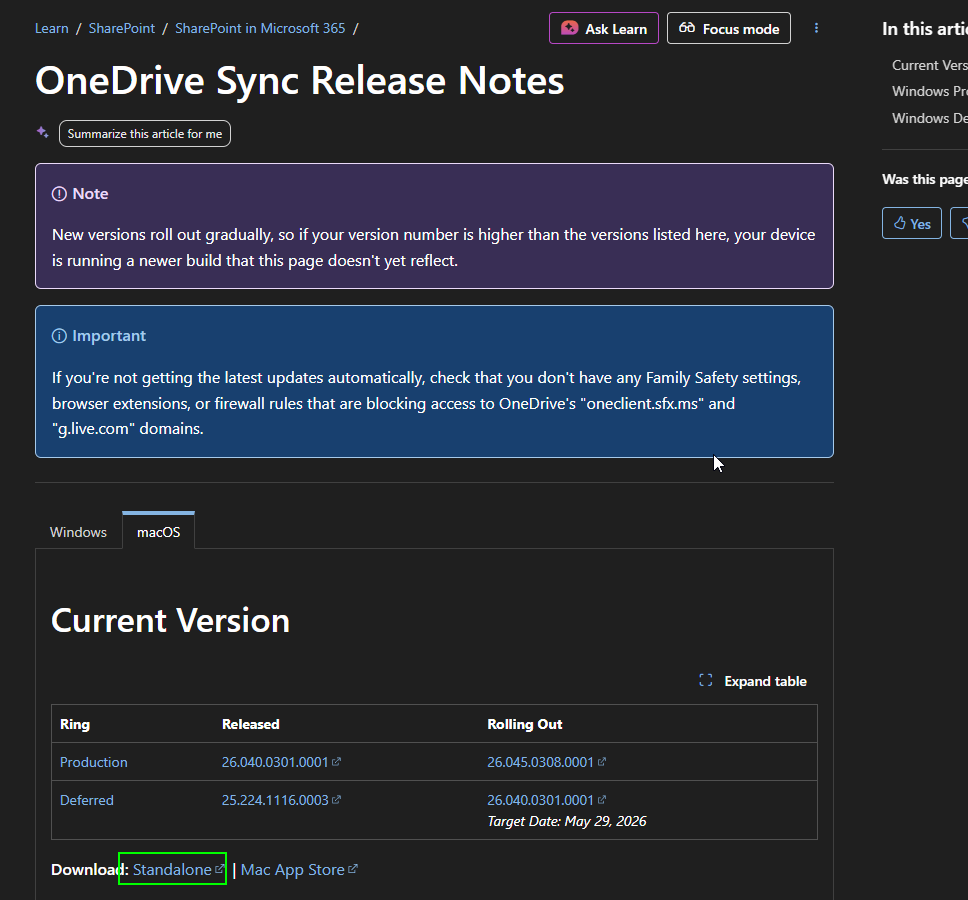
If you want to deploy just the OneDrive client without the rest of the Microsoft 365 apps for some reason, there is a .pkg you can download that on THIS LINK (select the latest build like the picture below) and then upload it to Intune as a macOS App (PKG). 👇
So in summary, just avoid the OneDrive app from the Mac App Store, okay?
Creating the OneDrive settings policy
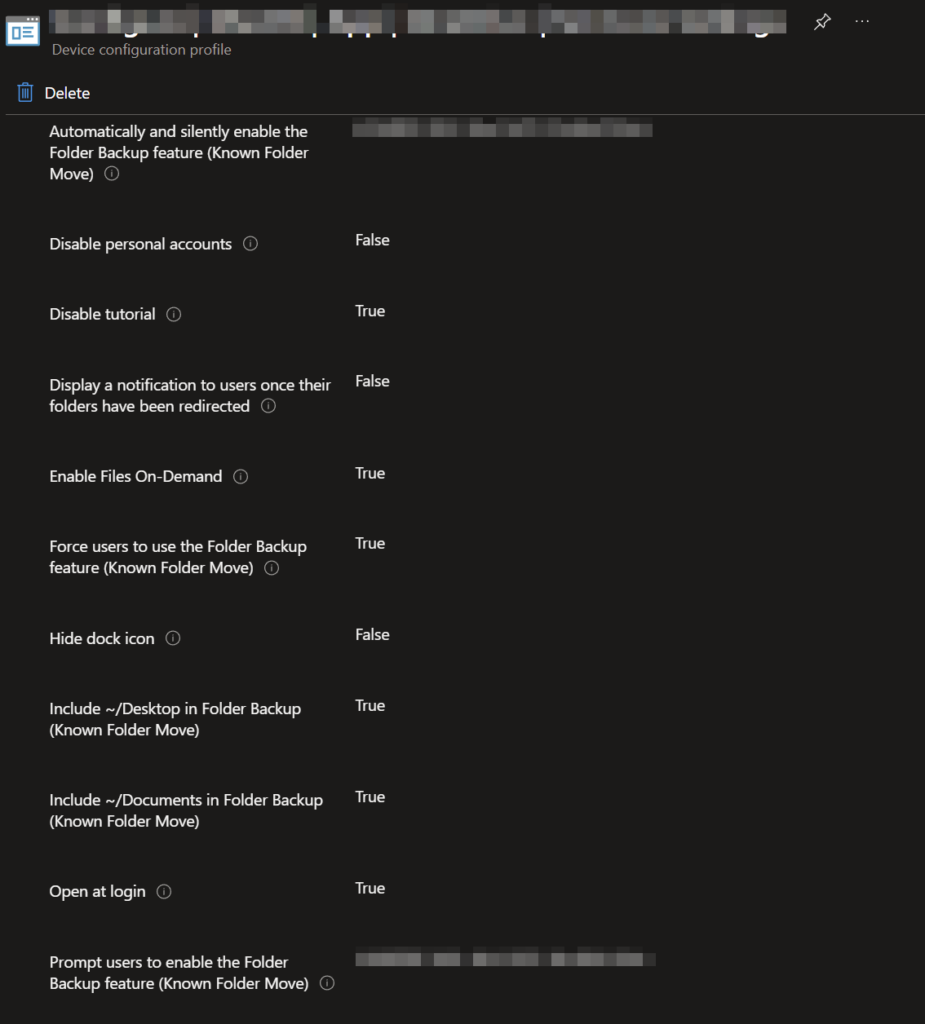
Now that we have the applicaton part figured out it’s time for the first policy which contains all of our OneDrive settings. In short this policy enables KFM, Files On-Demand and disable and hides a bunch of stuff. It’s pretty self explained in the second image below.
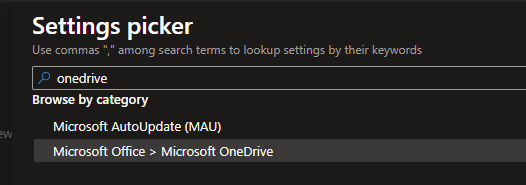
Create the policy by going to Devices > macOS > Configuration > create a Settings Catalog policy > give the policy a name and search for ‘OneDrive‘ and select ‘Microsoft Office > Microsoft OneDrive’ like the picture below. 👇
Select all the following settings. Populate the first and last settings (that are blurred in the picture) with the Tenant ID (found on the Overview page in Entra admin center). 👇
Select Scope tags, Assignments and create the policy!
Creating the OneDrive AutoUpdate policy
Do the same as above;
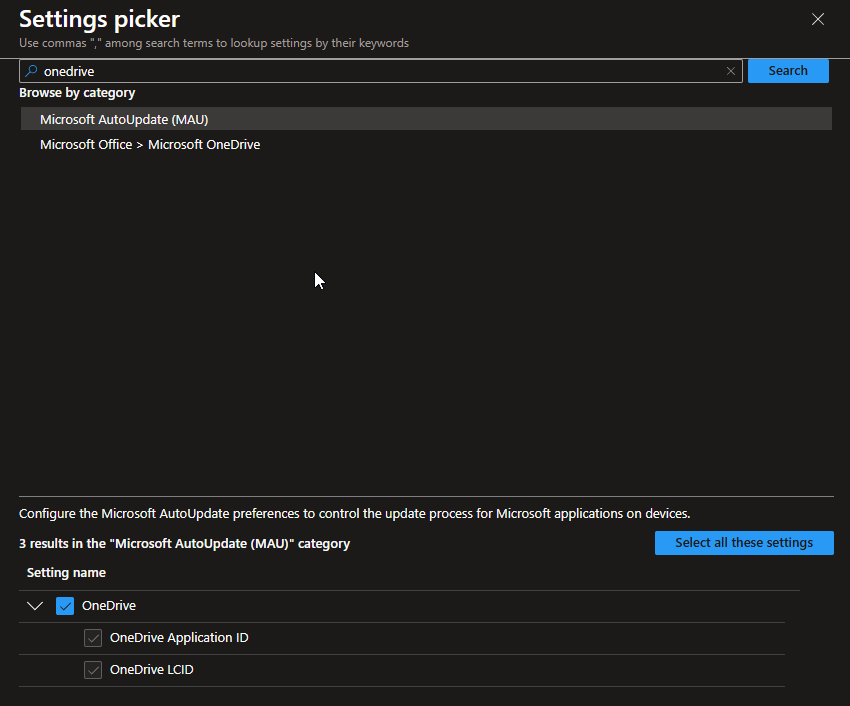
Go to Devices > macOS > Configuration > create a Settings Catalog policy > give it a name and search for ‘OneDrive‘ and instead select ‘Microsoft AutoUpdate (MAU)’ like the picture below. 👇
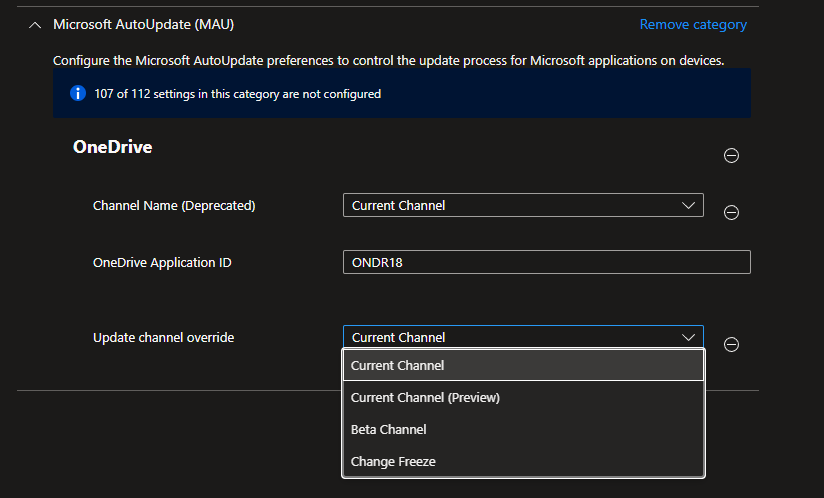
Select your preferred Update Channel. I chose to keep it on Current Channel. 👇
Select Scope tags, Assignments and create the policy!
Creating the Background services policy
This policy is used to allow OneDrive to run as a background service. If this policy is skipped the user is prompted to allow this (which we don’t want).
Copy the content below and paste it in your preferred text editor and save it as OneDrive_Backgroundservice.mobileconfig. It’s very important that the file format is .mobileconfig. This is taken straight from THIS article on Microsoft Learn.
<?xml version="1.0" encoding="UTF-8"?>
<!DOCTYPE plist PUBLIC "-//Apple//DTD PLIST 1.0//EN" "http://www.apple.com/DTDs/PropertyList-1.0.dtd">
<plist version="1">
<dict>
<key>PayloadUUID</key>
<string>9FE052B5-E7B6-4BF9-94EB-DB611E0E323E</string>
<key>PayloadType</key>
<string>Configuration</string>
<key>PayloadOrganization</key>
<string>Microsoft Corporation</string>
<key>PayloadIdentifier</key>
<string>9FE052B5-E7B6-4BF9-94EB-DB611E0E323E</string>
<key>PayloadDisplayName</key>
<string>OneDrive - Background Services</string>
<key>PayloadDescription</key>
<string/>
<key>PayloadVersion</key>
<integer>1</integer>
<key>PayloadEnabled</key>
<true/>
<key>PayloadRemovalDisallowed</key>
<true/>
<key>PayloadScope</key>
<string>System</string>
<key>PayloadContent</key>
<array>
<dict>
<key>PayloadDescription</key>
<string>Background Service Management for OneDrive</string>
<key>PayloadIdentifier</key>
<string>4C3F2438-464E-43F5-8961-D4672D4A9F5D.privacy.C7B71805-73F2-43F6-A5AA-29C9CAD728B4</string>
<key>PayloadUUID</key>
<string>F9EE3920-EAD8-4472-AF2F-52D2B57FDB31</string>
<key>Rules</key>
<array>
<dict>
<key>RuleType</key>
<string>LabelPrefix</string>
<key>RuleValue</key>
<string>com.microsoft.OneDrive</string><!--This would be com.microsoft.OneDrive-mac for the Store app-->
</dict>
<dict>
<key>RuleType</key>
<string>BundleIdentifierPrefix</string>
<key>RuleValue</key>
<string>com.microsoft.OneDriveLauncher</string>
</dict>
</array>
<key>PayloadType</key>
<string>com.apple.servicemanagement</string>
<key>PayloadDisplayName</key>
<string>Background Service Management for OneDrive</string>
</dict>
</array>
</dict>
</plist>Code language: HTML, XML (xml)
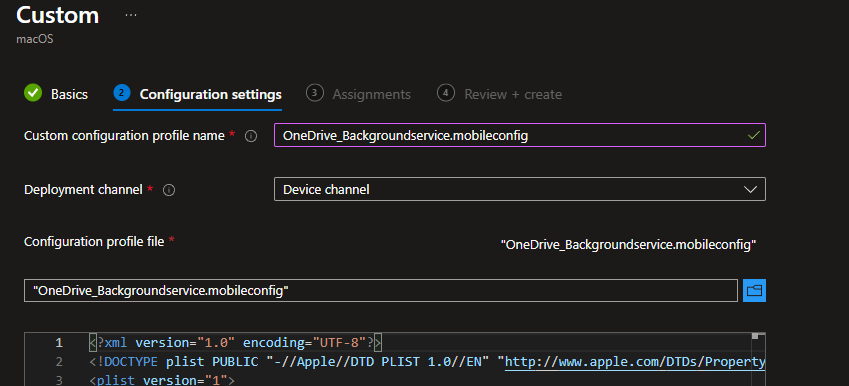
Create the policy by going to Devices > macOS > Configuration > create a Templates policy and select Custom > give it a name and description if you want and hit next.
Fill out the “Configuration settings” tab like below and upload the .mobileconfig you just created 👇
Select Scope tags, Assignments and create the policy!
Creating the Full Disk Access policy
It’s the same procedure here as the previous step. If this is skipped, the user gets prompted to allow Full Disk Access and GUESS WHAT!? We don’t want that.
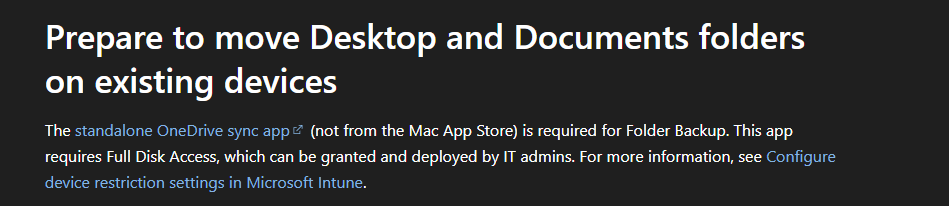
If you want to read more about Full Disk Access and why you need it you can read it in this article on Microsoft Learn. Below is a snippet from the article that states that Full Disk Access is needed when enabling Known Folder Move (called Folder Backup on macOS) which we configured in the OneDrive settings catalog policy above 👇
Copy the content below and paste them in your preferred text editor and save it as OneDrive_FullDiskAccess.mobileconfig. This is taken straight from Microsoft’s GitHub. You can find it HERE!
<?xml version="1.0" encoding="UTF-8"?>
<!DOCTYPE plist PUBLIC "-//Apple//DTD PLIST 1.0//EN" "http://www.apple.com/DTDs/PropertyList-1.0.dtd">
<plist version="1.0">
<dict>
<key>PayloadUUID</key>
<string>E926B92B-465F-40E4-BF05-71FAB1D08E50</string>
<key>PayloadType</key>
<string>Configuration</string>
<key>PayloadOrganization</key>
<string>Microsoft Corporation</string>
<key>PayloadIdentifier</key>
<string>com.Microsoft.OneDrive.2C080480-851A-47B7-A26E-E0B0B9CFFBFC</string>
<key>PayloadDisplayName</key>
<string>Microsoft OneDrive - Full Disk Access</string>
<key>PayloadDescription</key>
<string>Allows Full Disk Access for Microsoft OneDrive that is needed for Known Folder Move (KFM)-feature</string>
<key>PayloadVersion</key>
<integer>1</integer>
<key>PayloadEnabled</key>
<true/>
<key>PayloadRemovalDisallowed</key>
<true/>
<key>PayloadScope</key>
<string>System</string>
<key>PayloadContent</key>
<array>
<dict>
<key>PayloadUUID</key>
<string>C6A7DAF4-B0A1-4EFD-A0CB-B304EDD43186</string>
<key>PayloadType</key>
<string>com.apple.TCC.configuration-profile-policy</string>
<key>PayloadOrganization</key>
<string>Microsoft Corporation</string>
<key>PayloadIdentifier</key>
<string>com.apple.TCC.configuration-profile-policy.B804A9E9-9EE3-4BFB-BCEC-D1573E9E75E0</string>
<key>PayloadDisplayName</key>
<string>Microsoft OneDrive - Full Disk Access</string>
<key>PayloadDescription</key>
<string/>
<key>PayloadVersion</key>
<integer>1</integer>
<key>PayloadEnabled</key>
<true/>
<key>Services</key>
<dict>
<key>SystemPolicyAllFiles</key>
<array>
<dict>
<key>Allowed</key>
<true/>
<key>CodeRequirement</key>
<string>identifier "com.microsoft.OneDrive" and anchor apple generic and certificate 1[field.1.2.840.113635.100.6.2.6] /* exists */ and certificate leaf[field.1.2.840.113635.100.6.1.13] /* exists */ and certificate leaf[subject.OU] = UBF8T346G9</string>
<key>Comment</key>
<string></string>
<key>Identifier</key>
<string>com.microsoft.OneDrive</string>
<key>IdentifierType</key>
<string>bundleID</string>
<key>StaticCode</key>
<false/>
</dict>
</array>
<key>SystemPolicyDesktopFolder</key>
<array>
<dict>
<key>Allowed</key>
<true/>
<key>CodeRequirement</key>
<string>identifier "com.microsoft.OneDrive" and anchor apple generic and certificate 1[field.1.2.840.113635.100.6.2.6] /* exists */ and certificate leaf[field.1.2.840.113635.100.6.1.13] /* exists */ and certificate leaf[subject.OU] = UBF8T346G9</string>
<key>Comment</key>
<string></string>
<key>Identifier</key>
<string>com.microsoft.OneDrive</string>
<key>IdentifierType</key>
<string>bundleID</string>
<key>StaticCode</key>
<false/>
</dict>
</array>
<key>SystemPolicyDocumentsFolder</key>
<array>
<dict>
<key>Allowed</key>
<true/>
<key>CodeRequirement</key>
<string>identifier "com.microsoft.OneDrive" and anchor apple generic and certificate 1[field.1.2.840.113635.100.6.2.6] /* exists */ and certificate leaf[field.1.2.840.113635.100.6.1.13] /* exists */ and certificate leaf[subject.OU] = UBF8T346G9</string>
<key>Comment</key>
<string></string>
<key>Identifier</key>
<string>com.microsoft.OneDrive</string>
<key>IdentifierType</key>
<string>bundleID</string>
<key>StaticCode</key>
<false/>
</dict>
</array>
<key>SystemPolicyDownloadsFolder</key>
<array>
<dict>
<key>Allowed</key>
<true/>
<key>CodeRequirement</key>
<string>identifier "com.microsoft.OneDrive" and anchor apple generic and certificate 1[field.1.2.840.113635.100.6.2.6] /* exists */ and certificate leaf[field.1.2.840.113635.100.6.1.13] /* exists */ and certificate leaf[subject.OU] = UBF8T346G9</string>
<key>Comment</key>
<string></string>
<key>Identifier</key>
<string>com.microsoft.OneDrive</string>
<key>IdentifierType</key>
<string>bundleID</string>
<key>StaticCode</key>
<false/>
</dict>
</array>
</dict>
</dict>
</array>
</dict>
</plist>Code language: HTML, XML (xml)
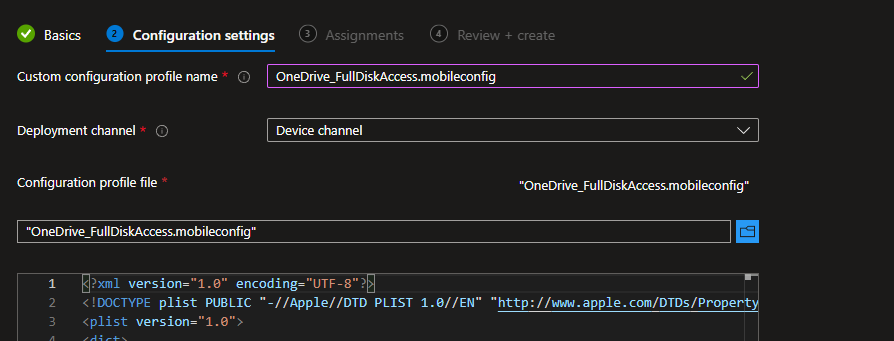
Create the policy by going to Devices > macOS > Configuration > create a Templates policy and select Custom > give it a name and description if you want and hit next.
Fill out the “Configuration settings” tab like below and upload the .mobileconfig file you just created 👇
Select Scope tags, Assignments and create the policy!
Make sure the policy applies before the OneDrive client on new devices (Apple Business/Apple Business Manager only!)
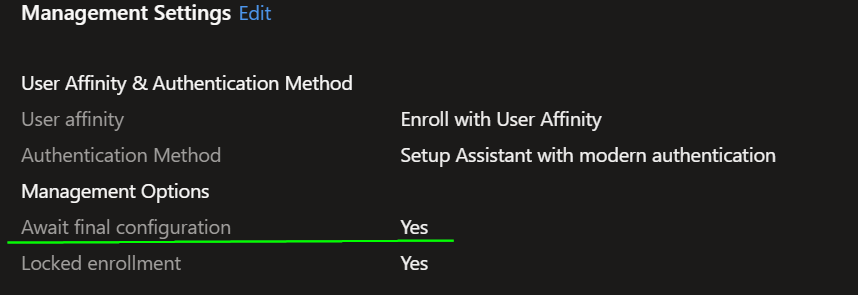
A little neat tip is that if you have Apple Business/Apple Business Manager setup with an Enrollment program token in Intune you can set “Await final configuration” to Yes to make sure the policies applies BEFORE the OneDrive sync client lands on the device.
I highly recommend switching “Locked Enrollment” to Yes as well to prevent users from removing configurations on their macOS device.
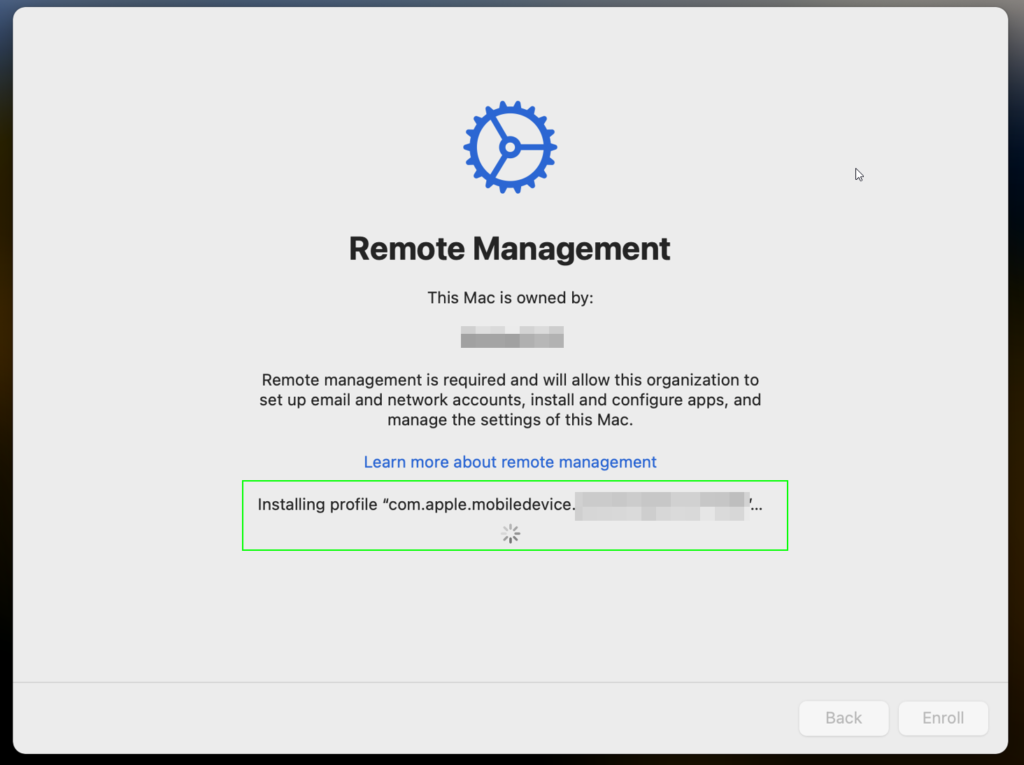
During first sign-in experience/OOBE when setting up a new macOS deivce you can see that the policies will apply before the user gets to the desktop (kind of similar to Windows Autopilot I guess)
Comparing the process; Before the policies
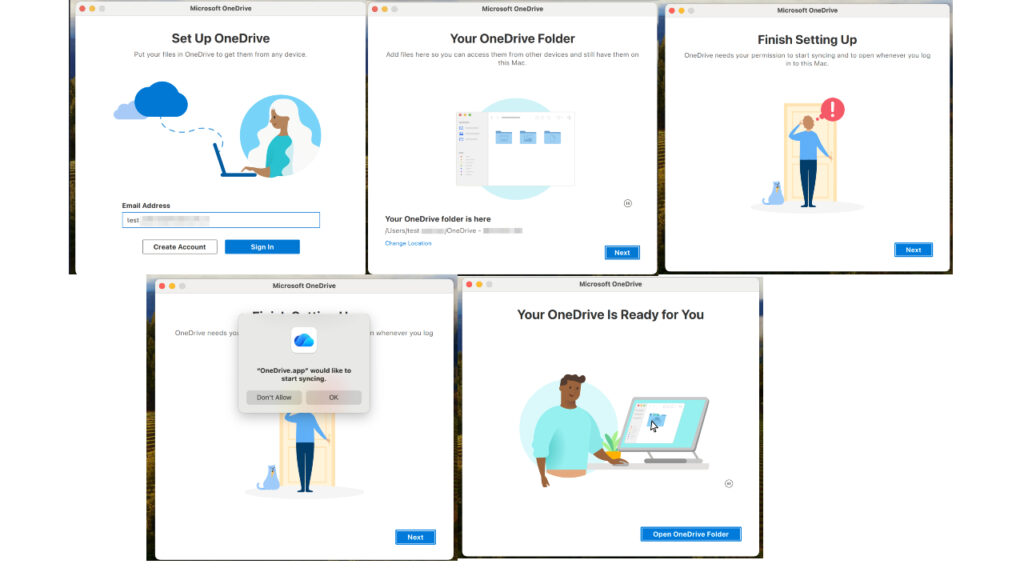
Below is the end users perspective step-by-step without any of the policies above when starting OneDrive for the first time. We have a totalt of 9 manual steps here:
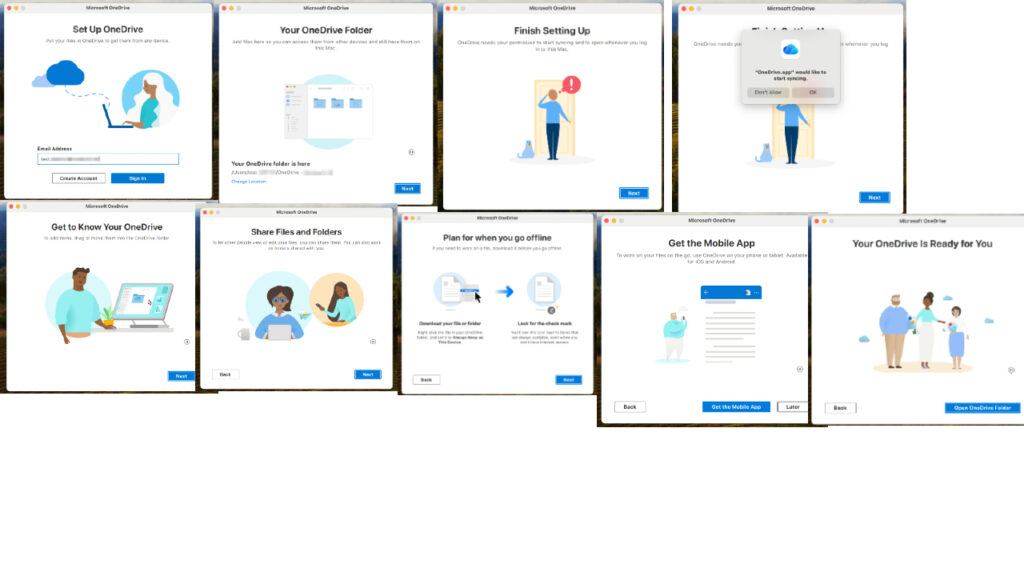
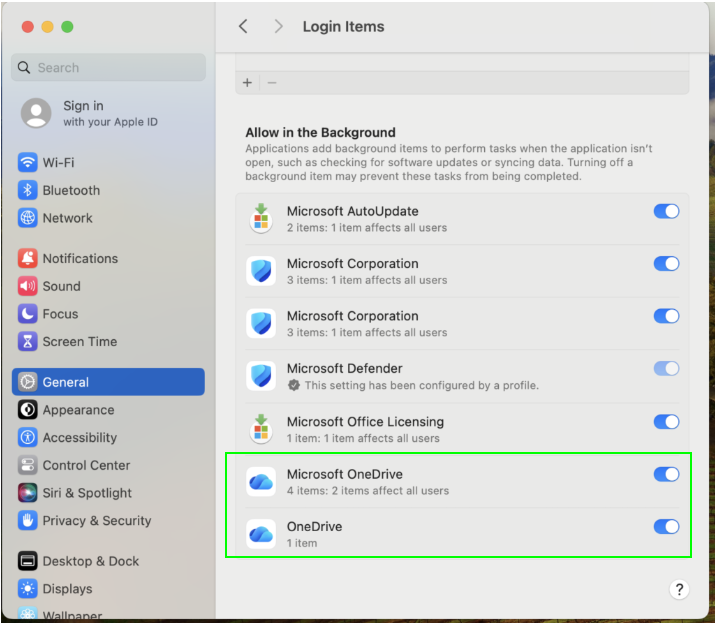
As you can see below if we go into Settings > General > Login items > Allow in the background the Background services for OneDrive is enabled after manual setup BUT the user can choose to turn it off which is not ideal.
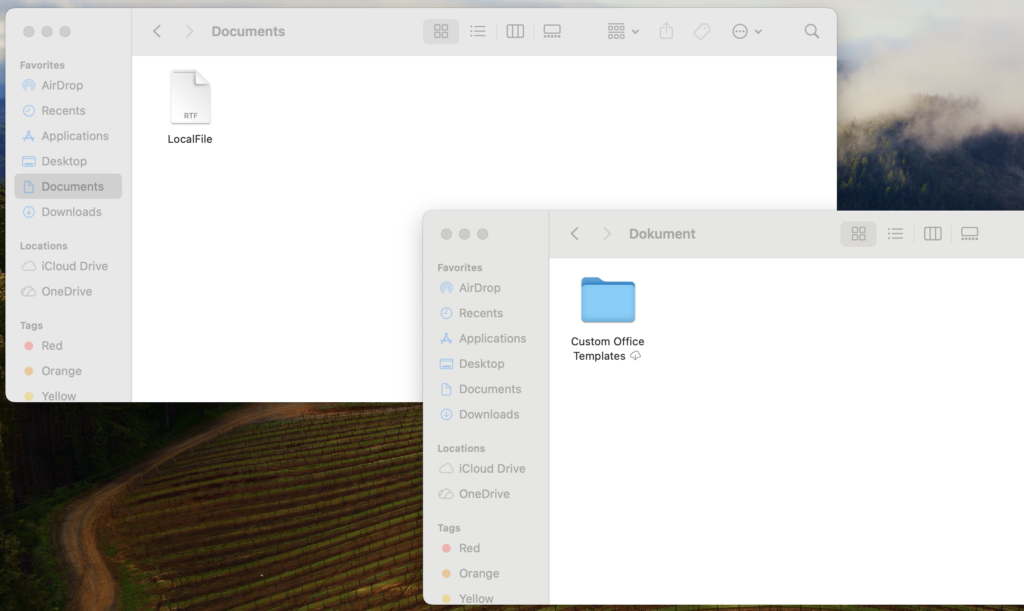
As we can see Known Folder Move/Folder Backup has not been applied since the file called LocalFile doesn’t have a sync icon which indicates the Documents folder on the mac is still local and not syncing with OneDrive.
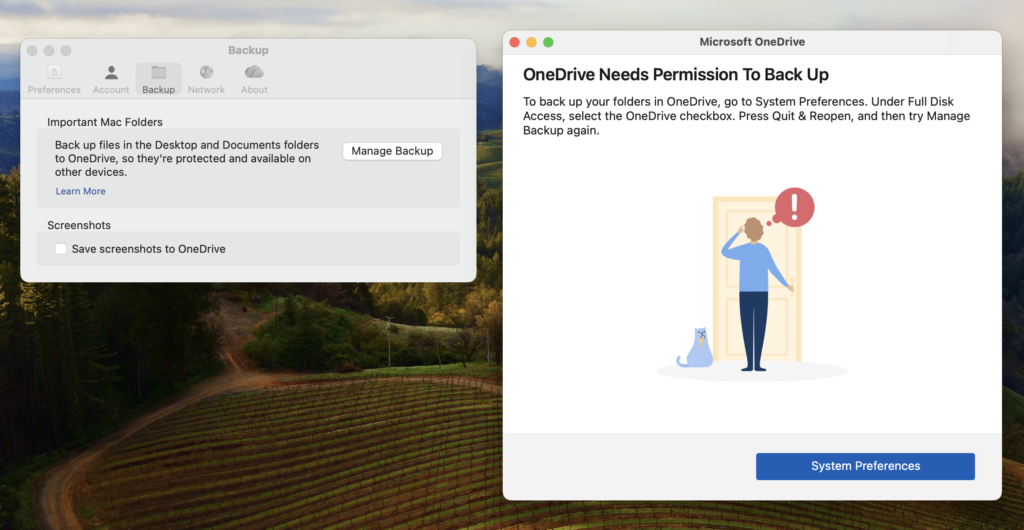
If we go to OneDrive > Settings > Backup > Manage Backup we are prompted to grant Full Disk Access before enabling the Known Folder Move/Folder Backup. This is not ideal and it’s really hard to guide a bunch of users to do this manually.
As you can tell, really clumsy and not silent at all by default. Let’s have a look what happens after our policies have applied and we wipe this mac again to get that first sign in experience.
Comparing the process; After the policies
As you can see now we have just 5 manual steps during the first sign-in, BUT we also have a bunch of other important settings enabled by default now. Scroll down to see what I mean 👇
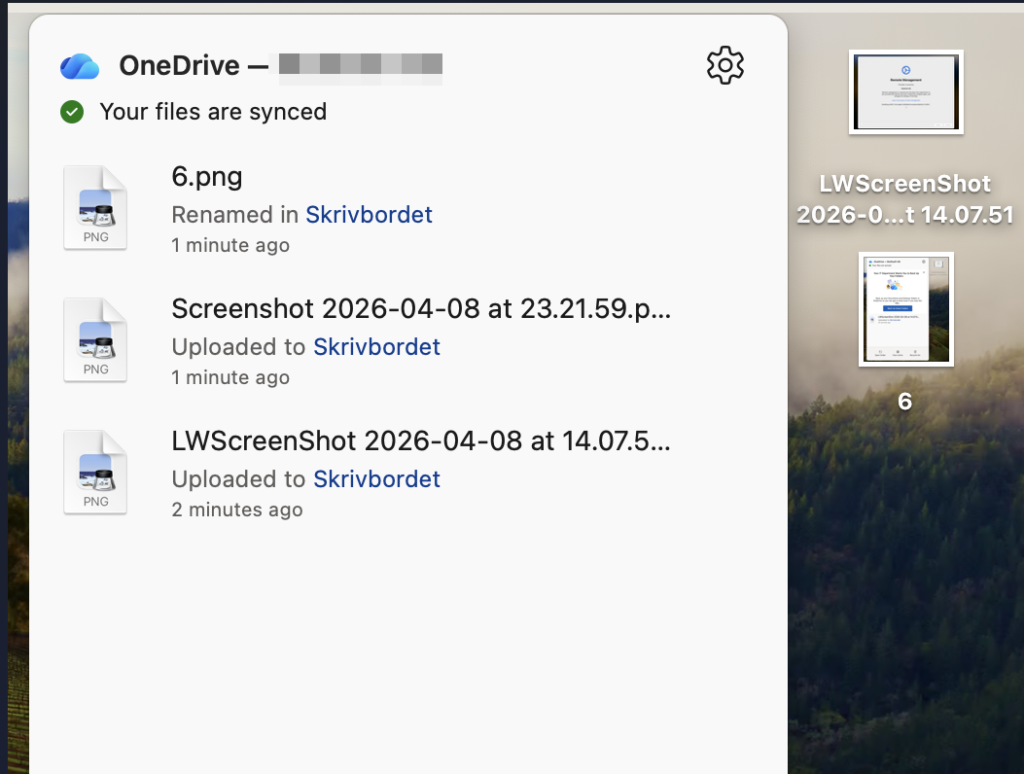
Within a few minutes of the first setup you should see that the Desktop and Documents will automatically start to sync indicating that KFM/Folder Backup was successful.
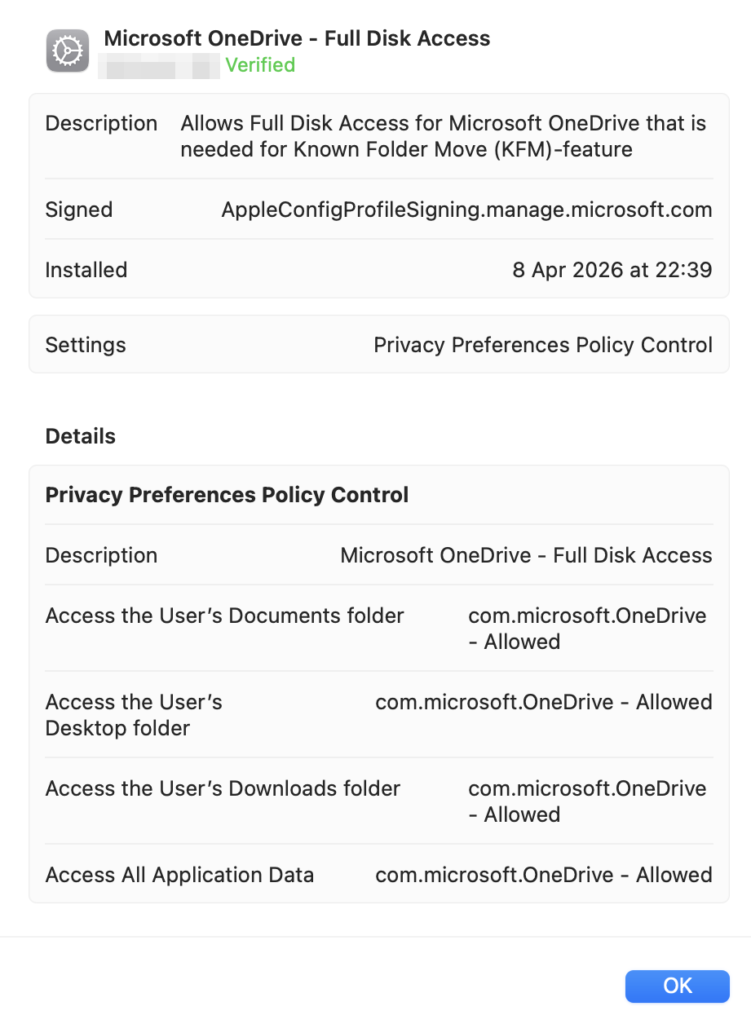
This works due to the Full Disk Access policy which we can see has applied on our Mac in Settings > Privacy & Security 👇
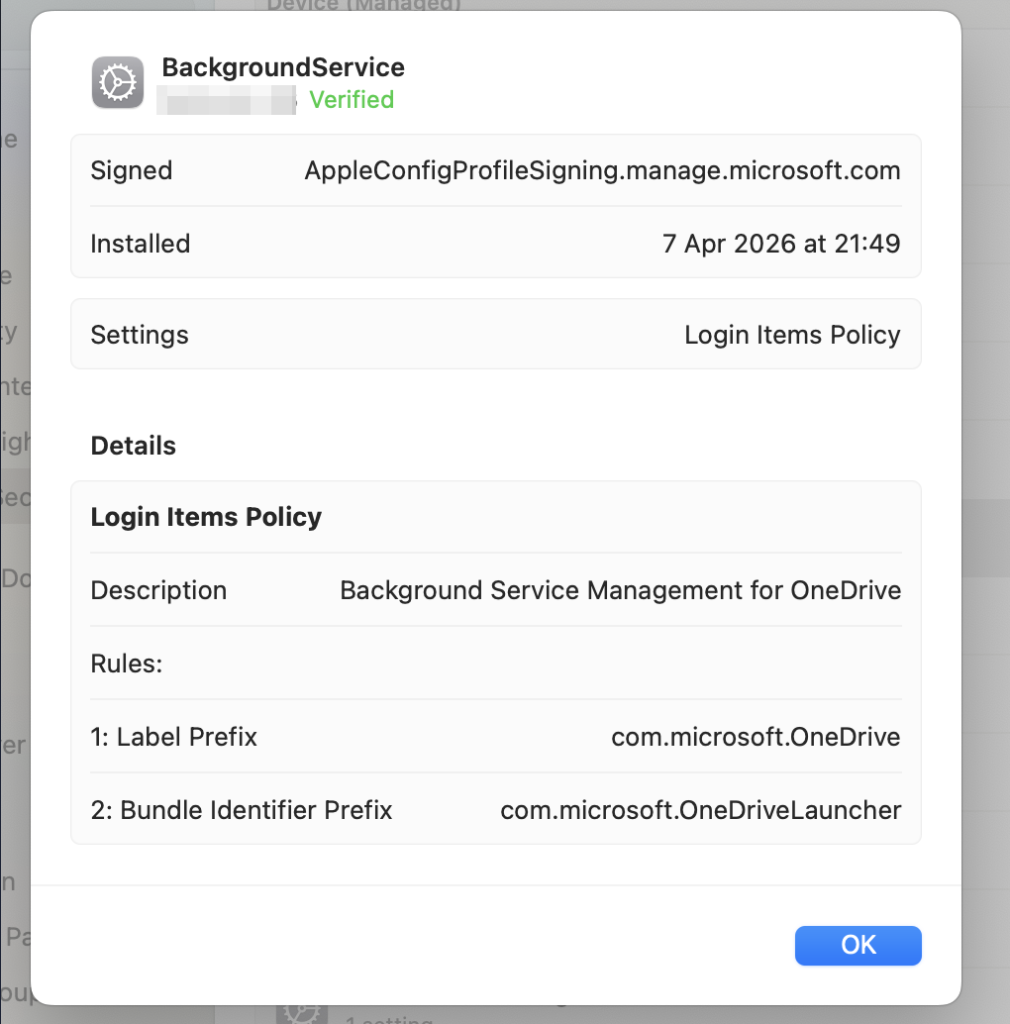
Here we can also see the Background service policy as well 👇
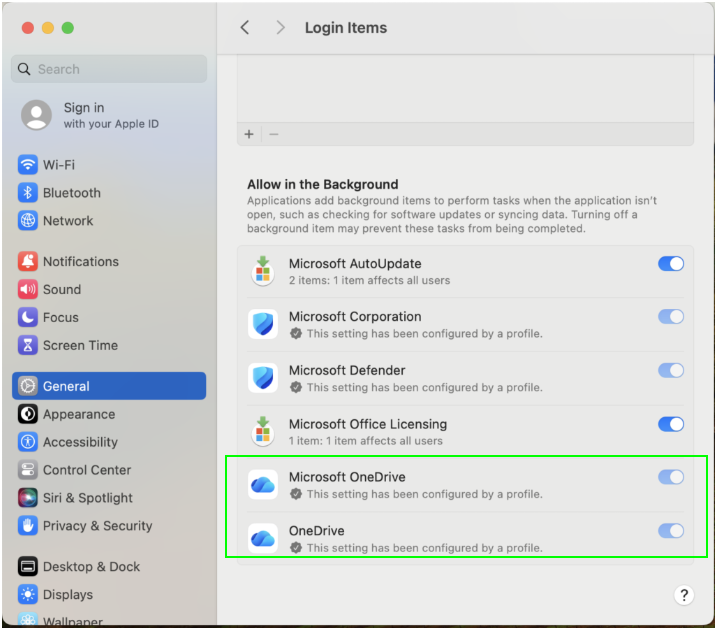
In Settings > General > Login items > Allow in the background there no longer is an option to turn off the background service for OneDrive and it now says ‘This setting has been configured by a profile’. 👇
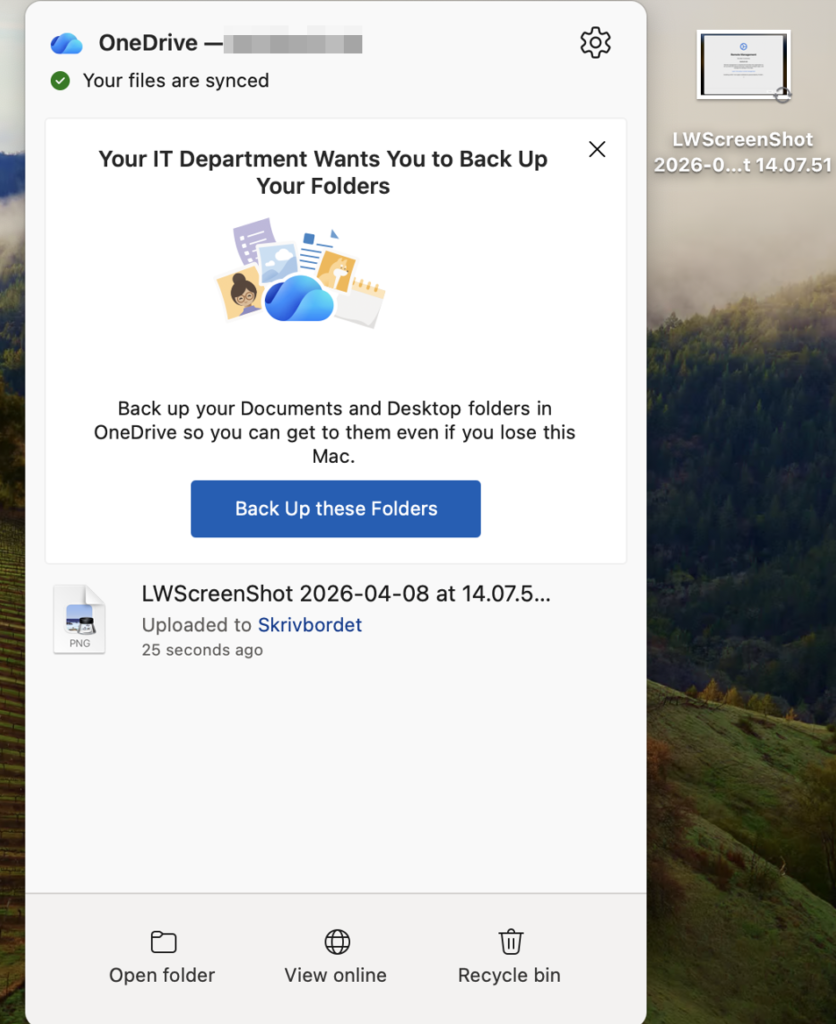
If the Known Folder Move/Folder Backup fails to move silently the user will receive a big prompt in the OneDrive app like this. If the user press “Back up these Folders” it will do the Known Folder Move/Folder Backup without prompting the user for any additional consents. It just works after that one click 🪄
UPDATE; Remove the “OneDrive.app would like to start syncing” prompt in macOS 26.4 and later
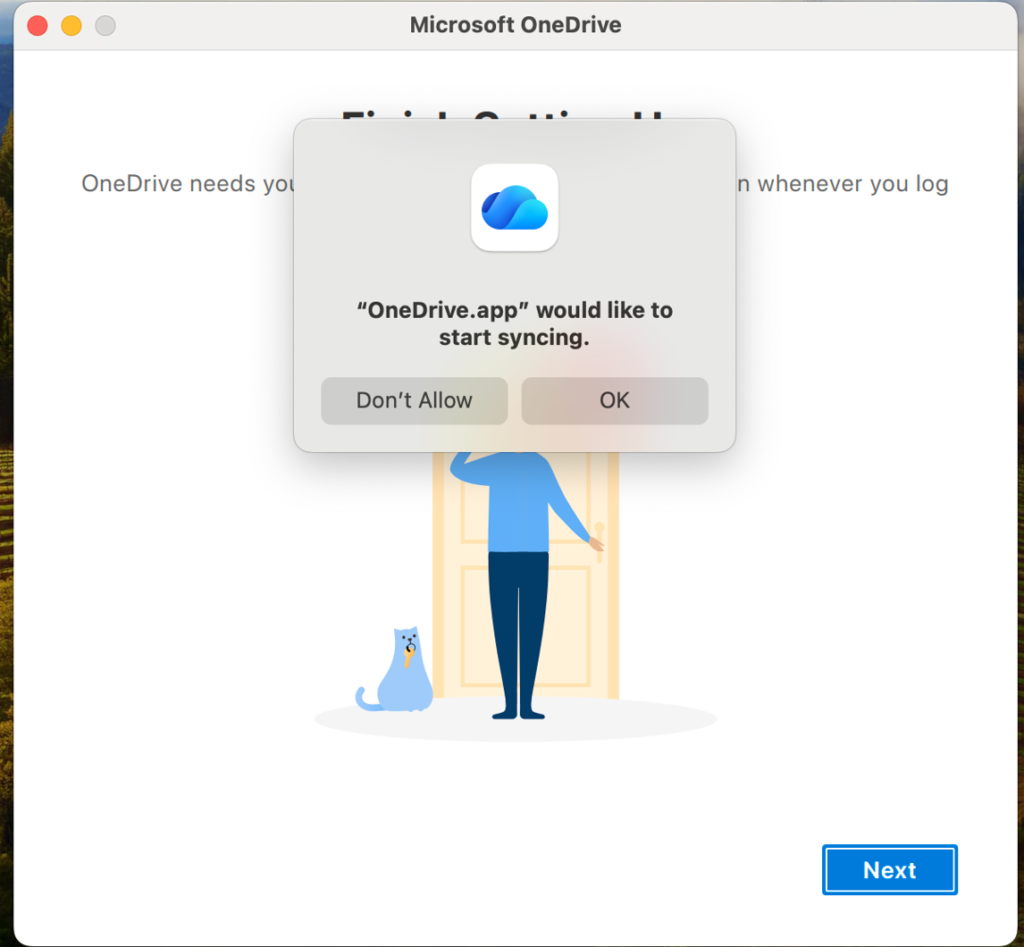
A guy named Felix commented on this post and mentioned that as of macOS 26.4 it’s possible to supress the “OneDrive.app would like to start syncing” prompt (see picture below). 👇
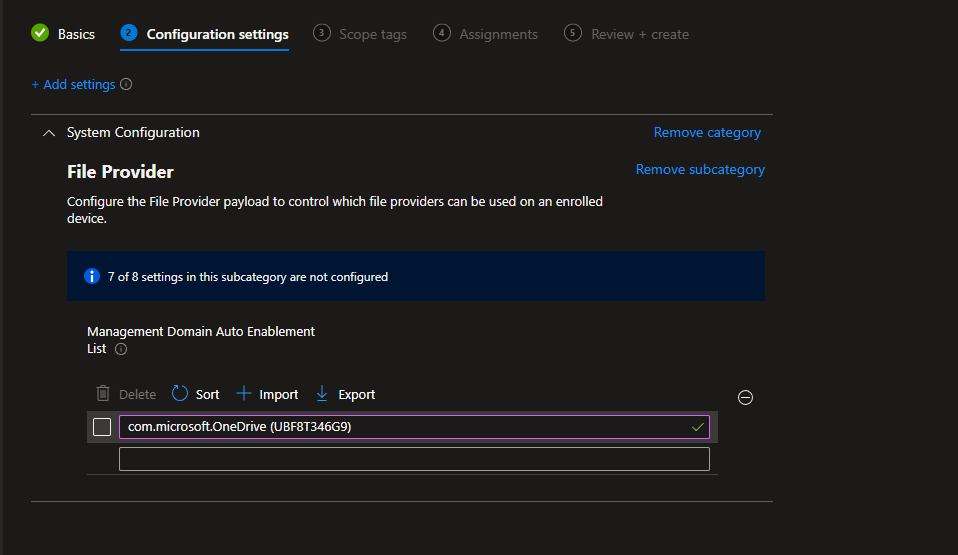
All we have to do is create a Settings Catalog policy for macOS and search for “Management Domain Auto Enablement List” and add the value com.microsoft.OneDrive (UBF8T346G9) like the picture below 👇
DISCLAIMER; I haven’t had the time to try the policy above but I trust Felix! 😁
Some final words
I spent a lot of time getting this to work and really went deep to make this deployment as silent as possible, and I think I got as close as we can. If you have read this far, thank you so much! Feel free to comment if you feel like I missed something when it comes to making this process as silent as possible.
Thank you so much for reading this article! Please consider subscribing to my newsletter if you like what I do, it helps me out a lot!
Until next time!


Leave a Reply